Chrome usually uses your system proxy settings unless you configure a browser-level proxy extension.
A Chrome proxy extension and a proxy provider are not the same thing.
ZeroOmega is useful for managing proxies in Chrome, but it does not provide proxy IPs by itself.
Nstproxy is a strong proxy provider for Chrome because it offers residential, static ISP, datacenter, IPv6, and mobile proxies.
Static ISP proxies are best for stable browsing and login sessions.
Residential proxies are better for geo-targeted browsing, web research, and higher-trust access.
Free Chrome proxies may work for casual testing, but they are usually too unstable for serious workflows.
Lead-in
Finding the best proxy for Chrome can be confusing because Google results mix several different things together. Some pages recommend VPN extensions. Some recommend Chrome proxy switchers. Some promote proxy providers. Others list free tools that do not actually provide high-quality proxy IPs.
The problem is simple: a Chrome proxy setup usually needs two parts. First, you need a reliable proxy provider that gives you the actual IP address. Second, you need a way to configure that proxy inside Chrome. A proxy extension can help you switch profiles, but it does not always provide the IP itself.
For most serious use cases, the best setup is to use Nstproxy as the proxy provider and ZeroOmega as the Chrome proxy manager. Nstproxy gives you the proxy IPs, while ZeroOmega helps Chrome route traffic through them.
What Is a Proxy for Chrome?
A proxy for Chrome routes your browser traffic through another server before it reaches the website you want to visit. Instead of seeing your real public IP address, the website sees the proxy IP.
This is useful when you want to browse from another location, test localized content, manage browser-based workflows, or separate your real network from your Chrome activity.
But there is one important detail: Chrome does not give you a complete built-in proxy dashboard. In many cases, Chrome relies on your operating system’s proxy settings. If you want easier browser-level control, you usually need a Chrome proxy extension or proxy manager.
People use Chrome proxies for different reasons, and the best proxy type depends on the task.
For private browsing, a proxy helps mask your real public IP from the websites you visit. It does not make you invisible, but it does add a layer between your real network and the target site.
For geo-targeted browsing, proxies let you view web pages, search results, prices, ads, or local content from another region. This is useful for marketers, SEO teams, and e-commerce researchers.
For web scraping and data collection, proxies help distribute requests and reduce dependence on one IP address. Browser-based scraping especially benefits from a proxy that works smoothly inside Chrome.
For account workflows, stability matters more than rotation. If you are logging into an authorized account, switching IPs too often can create security checks. A stable proxy is usually better.
For ad verification and SEO monitoring, proxies allow teams to check what users see in different countries, states, or cities without physically being there.
Why Nstproxy Is a Strong Proxy Service for Chrome?
Nstproxy is a practical choice for Chrome users because it provides several proxy types instead of forcing every user into one setup. That matters because Chrome proxy use cases are very different. A person doing casual browsing does not need the same proxy as someone running SEO checks, scraping public web data, or managing long browser sessions.
Nstproxy offers residential proxies, static ISP proxies, datacenter proxies, IPv6 proxies, mobile proxies, and unlimited residential proxy options. This makes it easier to match the proxy type to the actual Chrome workflow.
🌎 Global IP Coverage: Access millions of IPs across multiple countries and regions worldwide. This allows users to browse websites from different locations, test localized content, and access region-specific services with greater flexibility.
⚡ Fast & Stable Connections: Nstproxy is built on high-performance infrastructure that delivers consistent speeds and reliable connectivity. Whether you're streaming content, researching websites, or managing online projects, you can enjoy a smoother browsing experience with fewer interruptions.
🔄 Multiple Proxy Types: Nstproxy offers a complete proxy ecosystem to support different use cases:
Residential Proxies
Static Residential Proxies
ISP Proxies
Datacenter Proxies
This flexibility allows users to choose the most suitable solution based on their browsing and business needs.
🎯 Advanced Geo-Targeting: Target specific countries, cities, regions, or ISPs for more accurate testing, research, and content verification. This feature is particularly useful for marketers, developers, and businesses operating internationally.
🔒 Enhanced Privacy & Security: By routing traffic through alternative IP addresses, Nstproxy helps users create a more independent browsing environment while adding an extra layer of privacy to their online activities.
💻 Easy Chrome Integration: Nstproxy can be configured with Chrome proxy extensions, browser profiles, anti-detect browsers, and other proxy management tools, making setup simple and user-friendly.
Unlike many free proxy services that suffer from slow speeds, unreliable connections, and limited location options, Nstproxy provides premium IP resources backed by enterprise-grade infrastructure. This combination of performance, flexibility, and global coverage makes it a strong proxy solution for both casual users and professionals.
How to Set Up Nstproxy in Chrome with ZeroOmega
ZeroOmega works well as the Chrome-side proxy manager. Nstproxy provides the proxy IP, and ZeroOmega tells Chrome when to use it.
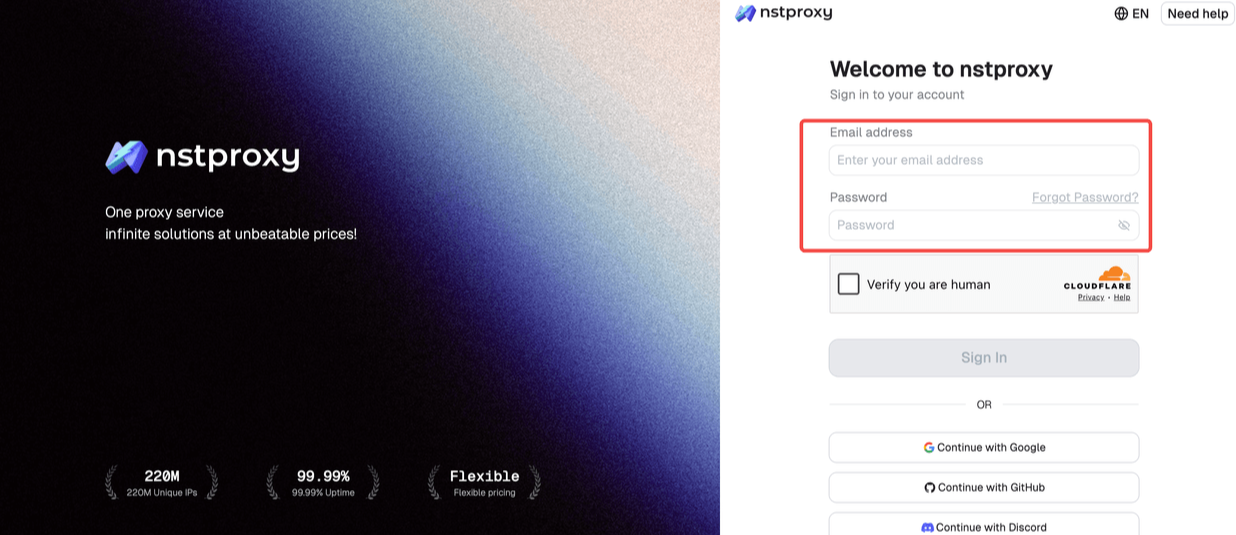
Step 1. Register or Sign up from Nstproxy Official
Go to Nstproxy offical and register or sign up with your email address. Then you can access to the dashboard.
Step 2. Get the Proxy Details
Before configuring Chrome, choose the proxy type based on your goal.
If you need stable browsing, account login consistency, or long sessions, choose Static ISP Proxy. This is the safest default for users who do not want their IP changing frequently.
If you need regional browsing, market research, SEO checks, or websites that respond better to real-user IPs, choose Residential Proxy.
If you need speed for lower-risk tasks, choose Datacenter Proxy or IPv6 Proxy.
If your workflow needs mobile network signals, choose Mobile Proxy.
The key is not to choose randomly. A rotating proxy is useful for research, but it may be a poor choice for login sessions. A static proxy is great for session stability, but it is not always ideal for large-scale page collection.
Step 3. Copy Your Nstproxy Proxy Details
After choosing the proxy product, open your Nstproxy dashboard and prepare the connection details.
You will usually need:
Proxy host
Port
Username
Password
Protocol, such as HTTP, HTTPS, or SOCKS5
Location or session setting, if your plan supports it
Keep these details ready before opening Chrome settings. Most Chrome proxy setup problems come from entering the wrong host, port, protocol, or password.
Step 4. Install ZeroOmega in Chrome
Open the Chrome Web Store and search for ZeroOmega. Add the extension to Chrome, then pin it to the browser toolbar so you can switch proxy profiles quickly.
ZeroOmega is only the manager. It does not replace Nstproxy. Think of it as the control panel that tells Chrome which Nstproxy connection to use.
Step 5. Create a New Proxy Profile
Open ZeroOmega and create a new profile. Name it something clear, such as Nstproxy-US or Nstproxy-Chrome.
Choose the correct proxy protocol. If your Nstproxy credentials use HTTP, select HTTP. If they use SOCKS5, select SOCKS5. Then enter the proxy host and port exactly as shown in your Nstproxy dashboard.
If authentication is required, enter the username and password. Save the profile after checking that there are no extra spaces or missing characters.
Step 6. Activate the Proxy and Test Your IP
Click the ZeroOmega icon in Chrome and select your Nstproxy profile. Then open an IP checker website in the same Chrome browser.
If the setup is correct, the IP checker should show your Nstproxy IP instead of your real IP. Also check whether the location matches your selected proxy region.
If your real IP still appears, the profile may not be active, the protocol may be wrong, or another extension may be interfering with the proxy settings.
Step 7. Use Stable Profiles for Serious Workflows
Once the proxy works, avoid switching too often during important sessions. If you are logging into an account, testing a local SERP, or managing a work profile, keep the same proxy active from start to finish.
For multiple workflows, create separate Chrome or ZeroOmega profiles. For example, you can have one static ISP profile for login sessions, one residential profile for US research, and another residential profile for UK browsing.
This keeps your setup cleaner and reduces mistakes.
Bonus. Best Chrome Proxy Extensions You Can Try
1. ZeroOmega
ZeroOmega is best for users who already have a proxy provider like Nstproxy and want flexible control inside Chrome. It is useful for creating multiple proxy profiles and switching between them quickly.
2. Proxy Switcher and Manager
This is a good option for users who want a straightforward Chrome proxy manager. It works well for manual proxy setups, but you still need to provide your own proxy IPs.
3. Best Proxy Switcher
Best Proxy Switcher is more suitable for casual users who want a lightweight switching tool. However, the final experience depends heavily on the quality of the proxies being used.
Free vs Paid Proxy for Chrome
Free Chrome proxies are tempting because they look easy. But they usually come with serious limits. Many free proxies are slow, unstable, overcrowded, or already blocked by common websites. Some may also create privacy and security risks.
Free tools may be fine for testing whether Chrome proxy switching works. They are not a good choice for serious browsing, business research, account management, or data collection.
Paid proxies are better when reliability matters. With a provider like Nstproxy, you can choose the proxy type, location, protocol, and session style. That control is what makes the setup useful beyond casual browsing.
Common Chrome Proxy Problems and Fixes
If Chrome proxy is not working, first check the basics. Make sure the host, port, username, password, and protocol are correct. One wrong character can break the connection.
If Chrome keeps asking for proxy authentication, your username or password may be incorrect, or the extension may not be saving credentials properly. Re-enter the credentials and save the profile again.
If websites still see your real IP, make sure the ZeroOmega profile is active. Also check whether another extension, VPN, or system proxy setting is overriding your Chrome proxy.
If the proxy works on one website but not another, the target site may be blocking that IP type. In that case, try a different proxy type. For example, if a datacenter proxy fails, a residential or static ISP proxy may work better.
If browsing becomes slow, test another location or proxy endpoint. Speed depends on proxy type, target website, distance, and network load.
How to Choose the Best Proxy for Chrome
Start with your use case, not the tool name. If you need casual browsing, a simple VPN extension may be enough. If you need reliable Chrome proxy control, use a proxy provider and a proxy manager.
For most serious users, Nstproxy plus ZeroOmega is a strong setup because it separates the two jobs clearly. Nstproxy handles IP quality, location, and proxy type. ZeroOmega handles Chrome configuration and switching.
When choosing a Chrome proxy, look for:
Reliable IP quality
HTTP and SOCKS5 support
Location targeting
Static and rotating session options
Clear proxy credentials
Compatibility with Chrome extensions
Better stability than free proxy lists
This is why Nstproxy fits the keyword well. It is not just a Chrome add-on; it is the proxy infrastructure behind the Chrome setup.
FAQs
Q1. What is the best proxy for Chrome?
The best proxy for Chrome is usually a combination of a reliable proxy provider and a Chrome proxy manager. Nstproxy plus ZeroOmega is a strong setup because Nstproxy provides high-quality proxies and ZeroOmega makes them easy to configure in Chrome.
Q2. Does Chrome have built-in proxy settings?
Chrome usually relies on your operating system’s proxy settings. To manage proxies only in Chrome, it is easier to use a proxy extension such as ZeroOmega.
CQ3. an I use Nstproxy with Chrome?
Yes. You can use Nstproxy with Chrome by configuring the proxy details in a proxy extension like ZeroOmega or in your system proxy settings.
Q4. Is a Chrome proxy better than a VPN extension?
A Chrome proxy gives more control over IP type, location, and session style. A VPN extension is easier for casual use, but proxies are usually better for SEO monitoring, scraping, geo-testing, and account workflows.
Q5. Are free Chrome proxies safe?
Free Chrome proxies are often unreliable and may carry privacy risks. They can be useful for quick testing, but they are not recommended for serious browsing or business workflows.
Conclusion
The best proxy for Chrome is not just a Chrome extension. A proxy extension can help you switch settings, but the real quality comes from the proxy IP provider behind it.
For most users who need a stable and flexible Chrome proxy setup, the best approach is to use Nstproxy as the proxy service and ZeroOmega as the Chrome proxy manager. This setup gives you control over IP type, location, protocol, and session stability, which is much stronger than relying on random free proxies or basic VPN-style extensions.
This guide explains how a fixed backconnect gateway selects rotating or session-pinned exit IPs. It clarifies proxy types, protocol boundaries, operational tradeoffs, and the checks buyers should run before choosing a service.
Kai Watanabe
Jul. 29th 2026
110M+ real IPs with 99.9% access success
Get immediate access to premium residential, datacenter, IPv6 and ISP proxy pools.
Blazing-fast average response ~0.5s for high-concurrency tasks