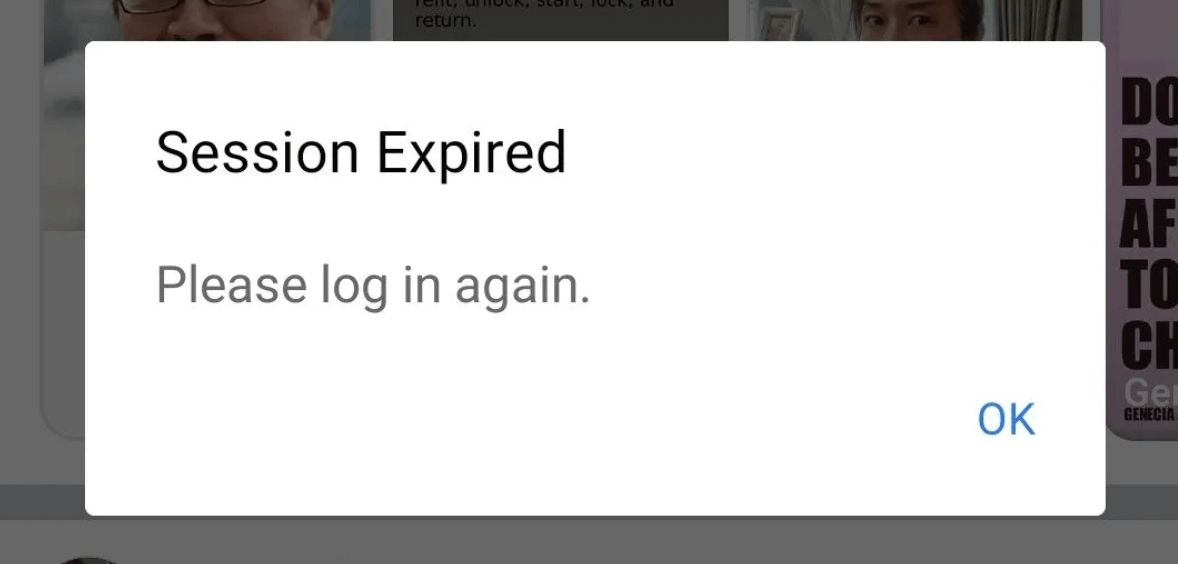
Facebook Session Expired: Why It Happens and How to Fix It
Quick Takeaways
“Facebook session expired” means Facebook no longer trusts or recognizes your current login session.
Common causes include expired cookies, outdated app versions, corrupted cache, password changes, security checks, unstable networks, or Meta-side login issues.
If it happens once, logging in again may be enough.
If it keeps happening, clear cache, update Facebook, review logged-in devices, and secure your account.
Free VPNs, public Wi-Fi, and constantly changing IPs can sometimes trigger repeated login checks.
For business users managing authorized Facebook accounts, Nstproxy Static ISP proxies can help create a more stable IP environment.
Lead-in
If Facebook suddenly logs you out and shows a message like “Session Expired. Please log in again,” it can feel confusing, especially if your password is correct and the app was working normally a few minutes ago. Some users only see the error on desktop, while Facebook still works on their phone. Others get logged out of both Facebook and Messenger at the same time.
In most cases, a Facebook session expired error simply means Facebook can no longer verify your current login session. That session may have timed out, become corrupted, or been invalidated because of a password change, app issue, suspicious login signal, or network change.
The important thing is not to panic. A session expired message does not always mean your Facebook account was hacked. But if the error keeps happening, or if you see unfamiliar devices in your account, you should treat it as both a login issue and a security check.
What Does “Facebook Session Expired” Mean?
A Facebook session is the temporary login state that keeps you signed in after entering your username, password, and security verification. Instead of asking you to log in every time you open the app, Facebook uses session data to remember that your device is already authenticated.
When that session expires, Facebook asks you to log in again. This can happen naturally after a long time, but it can also happen when Facebook detects that something about your login environment has changed.
For example, your browser cookies may no longer match Facebook’s server-side session data. Your app may be outdated. Your password may have been changed on another device. Or Facebook may notice that your account is suddenly being accessed from a new location, device, browser, or IP address.
Does “Session Expired” Mean Your Facebook Was Hacked?
Not always. A single session expired message is usually not enough to prove that your account was compromised.
However, you should check your account security if you notice any of these signs:
Unknown devices in your login history.
Messages sent from your account that you did not write.
Friend requests you did not send.
Password reset emails you did not request.
Changes to your email, phone number, or profile details.
Facebook asking for repeated verification codes.
If you still have access to your account, review your active sessions and change your password. If you cannot log in at all, use Facebook’s account recovery or hacked account page.
Why Does Facebook Say Session Expired?
1. Your Login Session Timed Out
Sometimes the simplest explanation is the right one. Facebook sessions can expire after inactivity, security updates, or server-side authentication changes. If this happens only once, logging in again may solve the problem immediately.
2. Cookies or Cache Are Corrupted
Facebook relies on cookies and cached data to keep your login session active in a browser. If that stored data becomes outdated or damaged, Facebook may fail to confirm your session and force a logout.
This is especially common when users switch between multiple Facebook accounts, use different browser profiles, or keep the same browser cache for a long time.
3. The Facebook App or Browser Is Outdated
An outdated Facebook app, Messenger app, or browser can cause login errors because it may not communicate properly with Facebook’s current authentication system. If Facebook recently updated its login flow, older app versions may behave unpredictably.
4. Your Password Was Changed
If you recently changed your Facebook password, Facebook may log out old sessions across devices. This is a normal security measure. It can also happen if someone else changed your password, which is why you should check account security if the logout feels unexpected.
5. Facebook Detected Suspicious Login Activity
Facebook may expire a session if it sees login behavior that looks unusual. This can include a new device, unfamiliar browser, different country, repeated login attempts, or a sudden change in IP address.
6. Your Network or IP Keeps Changing
A very unstable network can make Facebook sessions less reliable. Public Wi-Fi, shared VPNs, free proxies, or tools that rotate IPs too often may cause Facebook to keep rechecking your login session.
This does not mean every VPN or proxy causes problems. The issue is usually inconsistency. If your account appears to move between locations or networks too quickly, Facebook may treat that as a security signal.
7. Meta May Be Having a Login Issue
Sometimes the problem is not on your side. Facebook has had large-scale login issues before where many users were logged out at the same time. If Reddit, X, or outage trackers are full of similar reports, waiting may be better than repeatedly changing your account settings.
How to Fix Facebook Session Expired
Method 1. Log In Again and See If It Was a One-Time Error
If the error appears once, do not overcomplicate it. Facebook may simply have ended an old session.
Here is what to do:
Close the Facebook app or browser tab completely.
Reopen Facebook from the official app or facebook.com.
Enter your normal login details.
Complete two-factor authentication if Facebook asks for it.
Check whether your feed, Messenger, notifications, and account settings load normally.
Use Facebook for a few minutes without switching networks or devices.
If everything works after that, the issue was probably a normal expired session. If Facebook logs you out again within minutes, move to the next fixes.
Method 2. Check Whether Facebook Is Down
Before clearing settings or changing passwords, check whether the issue is affecting many users. This matters because a platform-side login problem cannot be fixed from your device.
A simple way to check:
Search Google or Reddit for recent posts about “Facebook session expired.”
Check whether users are reporting the same logout issue within the last hour.
Try opening Facebook on another device.
Switch from Wi-Fi to mobile data and test again.
If Facebook works nowhere and many people are reporting issues, wait and try again later.
If Facebook is having a login outage, repeatedly resetting your password or requesting codes may create more confusion. In that case, patience is usually the cleanest fix.
Method 3. Clear Facebook Cache and Cookies
If Facebook keeps saying session expired in a browser, old cookies are one of the most likely causes. Clearing them forces Facebook to create a fresh login session.
For Chrome or desktop browsers:
Open your browser settings.
Go to Privacy and Security.
Open Cookies and site data or Clear browsing data.
Search for Facebook-related site data if your browser allows it.
Delete cookies and cached files for Facebook.
Close the browser completely.
Reopen Facebook and log in again.
For Android:
Open your phone’s Settings.
Go to Apps.
Select Facebook.
Tap Storage.
Clear cache first.
If the issue continues, clear storage or app data.
Open Facebook and log in again.
For iPhone:
Update the Facebook app first.
If the error continues, uninstall Facebook.
Restart your iPhone.
Reinstall Facebook from the App Store.
Log in again with your account details.
This fix works best when the problem is caused by old session files rather than account security issues.
Method 4. Update or Reinstall Facebook
If your Facebook app is outdated, it may fail to keep a valid login session. Updating the app is quick and often solves repeated logout loops.
Steps:
Open the App Store or Google Play Store.
Search for Facebook.
Tap Update if an update is available.
Also update Messenger if you use it.
Restart your phone after the update.
Open Facebook and log in again.
If the error still appears, reinstall the app. Reinstalling removes broken local files and gives Facebook a clean setup. Just make sure you know your password and have access to your recovery email, phone number, or two-factor authentication method before deleting the app.
Method 5. Review Logged-In Devices and Secure Your Account
If the session expired message appears repeatedly, or if Facebook logs you out of multiple devices at once, check your account security.
Steps:
Log in to Facebook if you still can.
Open Settings and Privacy.
Go to Accounts Center.
Open Password and Security.
Find the section for where you are logged in.
Review the listed devices, locations, and login times.
Log out of any device you do not recognize.
Change your password to something strong and unique.
Turn on two-factor authentication.
Save backup codes in a safe place.
If you see unknown devices, do not ignore them. Log them out, change your password, and check whether your email or phone number was changed. If you cannot access the account, use Facebook’s hacked account recovery page.
Method 6. Fix Network or IP Instability
If Facebook keeps expiring your session after you switch networks, use a VPN, connect through public Wi-Fi, or manage accounts remotely, the issue may be related to login environment changes.
Facebook looks at more than just your password. It may also consider your device, browser, location, IP address, cookies, and account behavior. If these signals keep changing, Facebook may ask you to log in again or complete extra verification.
Steps:
Turn off free VPNs or unstable proxy tools.
Avoid switching between Wi-Fi, mobile data, and VPN locations during one login session.
If you are using public Wi-Fi, try a trusted private network instead.
Clear Facebook cookies after changing networks.
Log in from one stable browser and keep that setup consistent.
If you manage Facebook for work, avoid sharing the same login across too many devices and locations.
For normal personal use, a stable home network is usually enough. For business users, agencies, or social media managers, a more consistent IP setup may help reduce repeated login interruptions.
When Nstproxy Can Help with Facebook Session Stability
Nstproxy is not a magic fix for every Facebook session expired error. If your app is outdated, your password was changed, or Facebook is having an outage, you should fix those issues first.
Where Nstproxy- one of the best Facebook proxy makes sense is in a more specific scenario: you manage authorized Facebook accounts for business, ads, pages, or social workflows, and your sessions keep expiring because your IP environment is unstable. This can happen when a team uses shared VPNs, public networks, free proxies, or constantly changing IPs.
For this type of workflow, Nstproxy Static ISP proxies are the better fit because they provide a stable, high-quality IP that behaves more like a normal ISP connection. Instead of jumping across random VPN locations, you can keep a consistent network identity for a browser profile or work session.
Nstproxy can help with:
Stable IP sessions for long Facebook work periods.
Cleaner IP reputation compared with free proxies.
Residential and ISP-style traffic that looks more natural than shared datacenter VPN traffic.
Location consistency for teams working in specific regions.
HTTP and SOCKS5 support for browser or proxy manager setup.
Better control than public Wi-Fi or rotating free VPN tools.
The best prevention strategy is to keep your login environment predictable.
1. First, keep your Facebook app, Messenger app, and browser updated. Many login problems come from old software trying to communicate with newer authentication systems. Updates often fix these issues quietly.
2. Second, avoid unnecessary network switching. If you log in from Wi-Fi, then a free VPN, then mobile data, then a different proxy within a short period, Facebook may treat that as suspicious. A stable connection is better than constantly chasing a new IP.
3. Third, secure your account properly. Use a strong password that you do not reuse anywhere else. Turn on two-factor authentication. Review logged-in devices every so often. Remove third-party apps you no longer use.
4. Finally, if you use Facebook for work, separate your work setup from casual browsing. A dedicated browser profile, stable IP, and consistent device environment can reduce repeated login prompts.
Common Mistakes to Avoid
One common mistake is trying to log in too many times too quickly. If Facebook is already asking for verification, repeated attempts may make the process harder.
Another mistake is ignoring unknown devices. If your login history shows a device or location you do not recognize, treat it as a security issue immediately.
You should also avoid free VPNs and free proxies for Facebook login sessions. These IPs are often shared by many users, change frequently, and may already have poor reputation.
Do not clear everything before confirming you can recover your account. Before reinstalling apps or changing passwords, make sure you can access your email, phone number, authenticator app, or recovery codes.
FAQs
Q1. Why does Facebook keep saying session expired?
Facebook may keep saying session expired because your login cookies are corrupted, your app is outdated, your password changed, your network keeps changing, or Facebook detected unusual login activity.
Q2. How do I fix Facebook session expired on iPhone?
Update the Facebook app, restart your iPhone, and log in again. If the error continues, uninstall and reinstall Facebook, then sign in with a fresh session.
Q3. How do I fix Facebook session expired on Android?
Clear the Facebook app cache first. If that does not work, clear app data, update the app, restart your phone, and log in again.
Q4. Does Facebook session expired mean I was hacked?
Not always. A session expired message is often a normal login issue. But if you see unknown devices, strange messages, or account changes you did not make, secure your account immediately.
Q5. Why does Messenger say session expired?
Messenger uses your Facebook login session. If Facebook invalidates the session, Messenger may also log you out or ask you to sign in again.
Q6. What should I do if I cannot log back into Facebook?
Use Facebook’s account recovery page or hacked account page. Try logging in from a device you have used before, reset your password, and follow Facebook’s verification steps.
Conclusion
The Facebook session expired error usually means Facebook can no longer validate your current login session. In many cases, the fix is simple: log in again, clear cache, update the app, or check whether Facebook is having a wider login issue.
If the error keeps coming back, take it more seriously. Review your logged-in devices, change your password, turn on two-factor authentication, and stabilize your network. For business users or social media teams dealing with repeated session problems caused by unstable IPs or shared VPNs, Nstproxy Static ISP proxies can provide a cleaner and more consistent login environment.
This guide explains how a fixed backconnect gateway selects rotating or session-pinned exit IPs. It clarifies proxy types, protocol boundaries, operational tradeoffs, and the checks buyers should run before choosing a service.
Kai Watanabe
Jul. 29th 2026
Experience Nstproxy - Start Your Free Trial Today
110M+ real IPs with 99.9% access success
Get immediate access to premium residential, datacenter, IPv6 and ISP proxy pools.
Blazing-fast average response ~0.5s for high-concurrency tasks