How to Unlock Steam: Unblock Friends & Access Fixes
On January 11, 2026, Steam set a new record with more than 42 million concurrent users online. Yet while millions access Steam without issues, others still face blocked connections, restricted features, or limited access at school, work, or in certain regions.
If you are searching for how to unlock Steam, you are likely dealing with some type of “blocked” issue. Maybe Steam Community or chat will not load, or your Steam friends suddenly appear blocked. Some problems are account-related, while others are caused by network restrictions.
Although VPNs and DNS changes are common fixes, they can be slow, complicated, or blocked by certain networks. Reliable proxies offer a simpler alternative for restoring access to Steam.
In this guide, we’ll show you how to unlock someone on steam and how to use a proxy server to unblock Steam when network restrictions happen.
Steam may show “blocked” for several reasons as below:
You blocked a friend or profile: Steam prevents communication between you and that user until you unblock them.
Many friends are blocked at once: This may be caused by accidental settings changes, account sync issues, or suspicious account activity.
The other person blocked you: Even if you unblock them, communication may still fail if they have blocked you.
Your Steam account is limited: New or restricted accounts may not have full Community access.
Steam Market or Community is restricted: Steam Guard, purchase history, cooldowns, or account security rules may limit access.
Steam is blocked by your network: School, office, public Wi-Fi, firewall, DNS, ISP routing, or regional connectivity problems can stop Steam from loading.
Steam region access is inconsistent: Store pages, pricing, or availability may appear differently depending on location and account settings.
This is why “unlock Steam” is not one single fix. You first need to identify whether the block is happening inside your Steam account or outside it at the network level.
How to Unlock Someone on Steam
"All of my Steam friends suddenly appeared blocked, and I want an easy way to unblock around 50 friends at once." -from one Reddit user
That situation feels confusing because “blocked” on Steam can mean several different things. You may have blocked a friend by mistake, Steam may show blocked users in your Friends settings, your account may have a community restriction, or your network may be blocking access to Steam altogether.
If Steam says a person is blocked, start with Steam’s built-in unblock options.
Method 1: Via Friends List, Desktop & Browser
This is the best method when you want to review your full blocked list or unblock multiple people.
#1. On Steam desktop
Open the Steam client.
Hover over your username in the top menu.
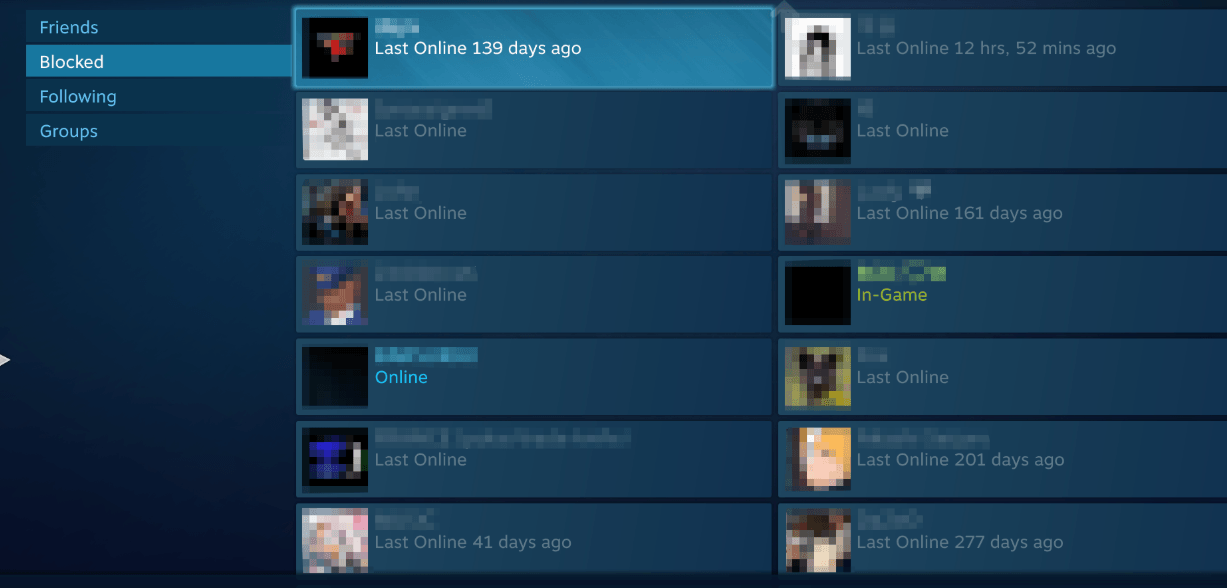
Click Friends.Then in the left menu, choose Blocked.
Click Manage Blocked List if available.
Select the user or users you want to unblock. Click Unblock.
If you are dealing with the Reddit-style case where many friends are blocked, start here. It gives you the best chance of seeing the full blocked list in one place.
#2. On Steam in a browser
Go to Steam and sign in. Open your profile> Click Friends > Open the Blocked tab.
Use the manage option to select blocked users.Click Unblock.
After unblocking, refresh Steam Friends & Chat. If the list still looks wrong, restart Steam or sign out and back in.
Method 2: Via User Profile
This method works best when you only need to unblock one person.
Open the user’s Steam profile. Click the three-dot menu or More button > Choose Unblock All Communication. Then confirm the action.
Try sending a message or friend request again.
3.If you cannot add the person after unblocking, the other user may have blocked you too. In that case, both sides need to unblock each other.
What If Unblocking Does Not Work?
If you already unblocked someone but Steam still will not let you message or add them, check these common causes.
1. The Other Person Blocked You
Steam communication is two-sided. If you unblock them but they still have you blocked, messages and friend requests may fail.
2. Your Account Is Limited
New Steam accounts can have restricted community features until they meet Steam’s limited account requirements. If your account is limited, unblocking a user may not restore every social feature.
3. Friend Limits or Pending Invites
If your friend list or pending invites are full, Steam may reject new friend actions. Remove old pending requests or inactive contacts before trying again.
4. Steam Client Sync Issue
Sometimes the Friends list behaves strangely because the client is not syncing. Restart Steam, test in a browser, or try the mobile app.
5. Account Security Issue
If many friends are blocked or removed without your action, treat it as suspicious. Secure the account before making changes.
How to Unlock Steam Access via Proxy
If Steam itself will not load, the issue may not be related to your friend list at all. It could be caused by network restrictions or unstable connectivity. Steam is commonly blocked or limited on school Wi-Fi, office networks, hotel or public Wi-Fi, firewall-protected environments, DNS-filtered networks, or even in regions where Steam services load inconsistently. In these situations, a proxy can help by routing your connection through a different IP path to determine whether the problem is caused by your current network. For this type of access issue, Nstproxy are a recommended solution for more stable and reliable Steam connectivity.
Nstpoxy Residential Proxies or ISP proxies are the best fit for unlocking Steam access because they use real residential IPs, which are better suited for normal web access patterns than free proxies or unstable public proxy lists.
Nstproxy Residential Proxies offer:
Real residential IPs across 190+ countries
HTTP(S) and SOCKS5 support
Country, city, and ASN targeting
Flexible session control
Automatic IP rotation
High stability for access testing
Pay-as-you-go or package pricing
24/7 technical support
For Steam access, residential proxies are usually the strongest choice because they provide a more natural connection profile. Datacenter proxies can be faster, but residential proxies are better when the goal is stable access, realistic regional testing, and fewer connection-quality issues.
Step 1: Sign Up
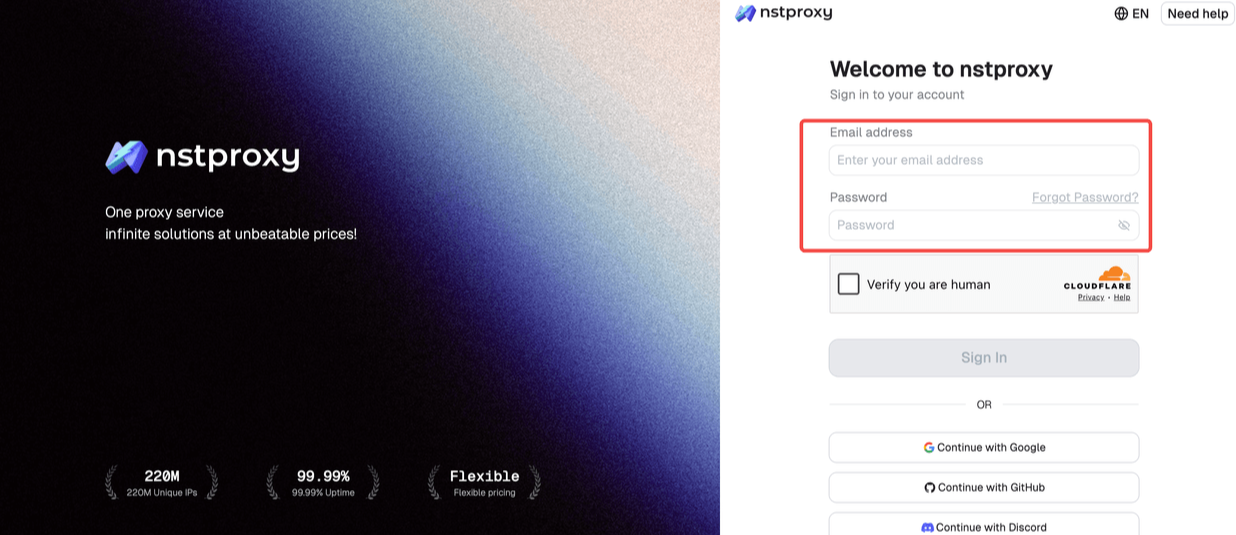
Go to Nstproxy official, and then create your account using your email. Once registered, you’ll get access to your dashboard.
Step 2: Add Funds
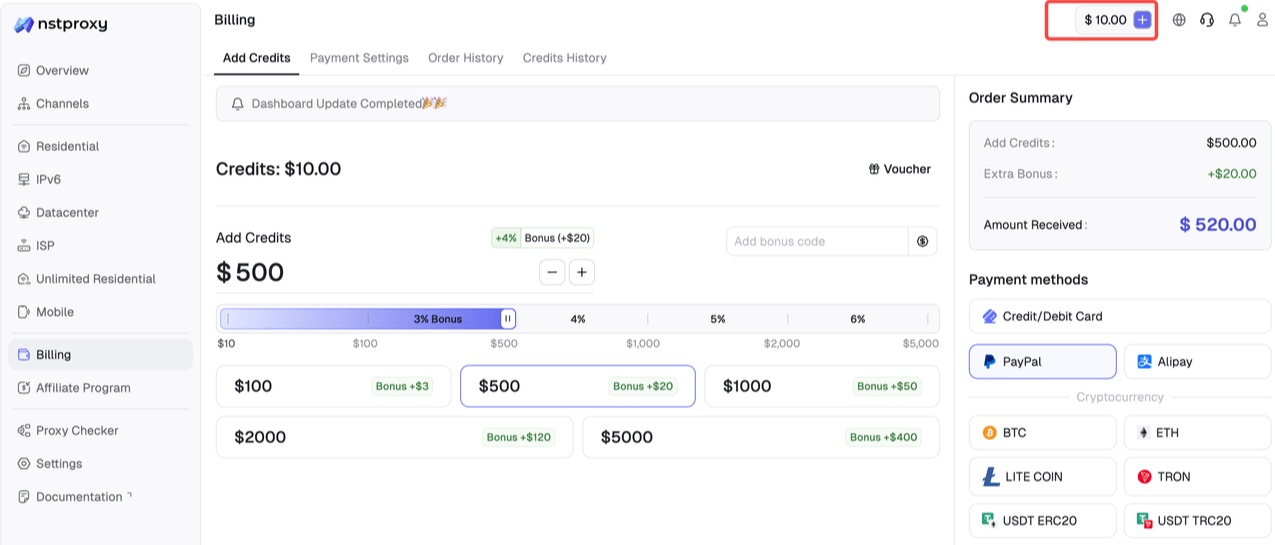
Once you have registered, you can top up your balance before using proxies. Simple go to Dashboard > Billing tab.
Alternatively, Nstproxy also supports a pay-as-you-go model, so you only pay for what you use.
Step 3: Choose Proxy Type
Next, select the proxy type that fits your needs by switching to the specific channel.
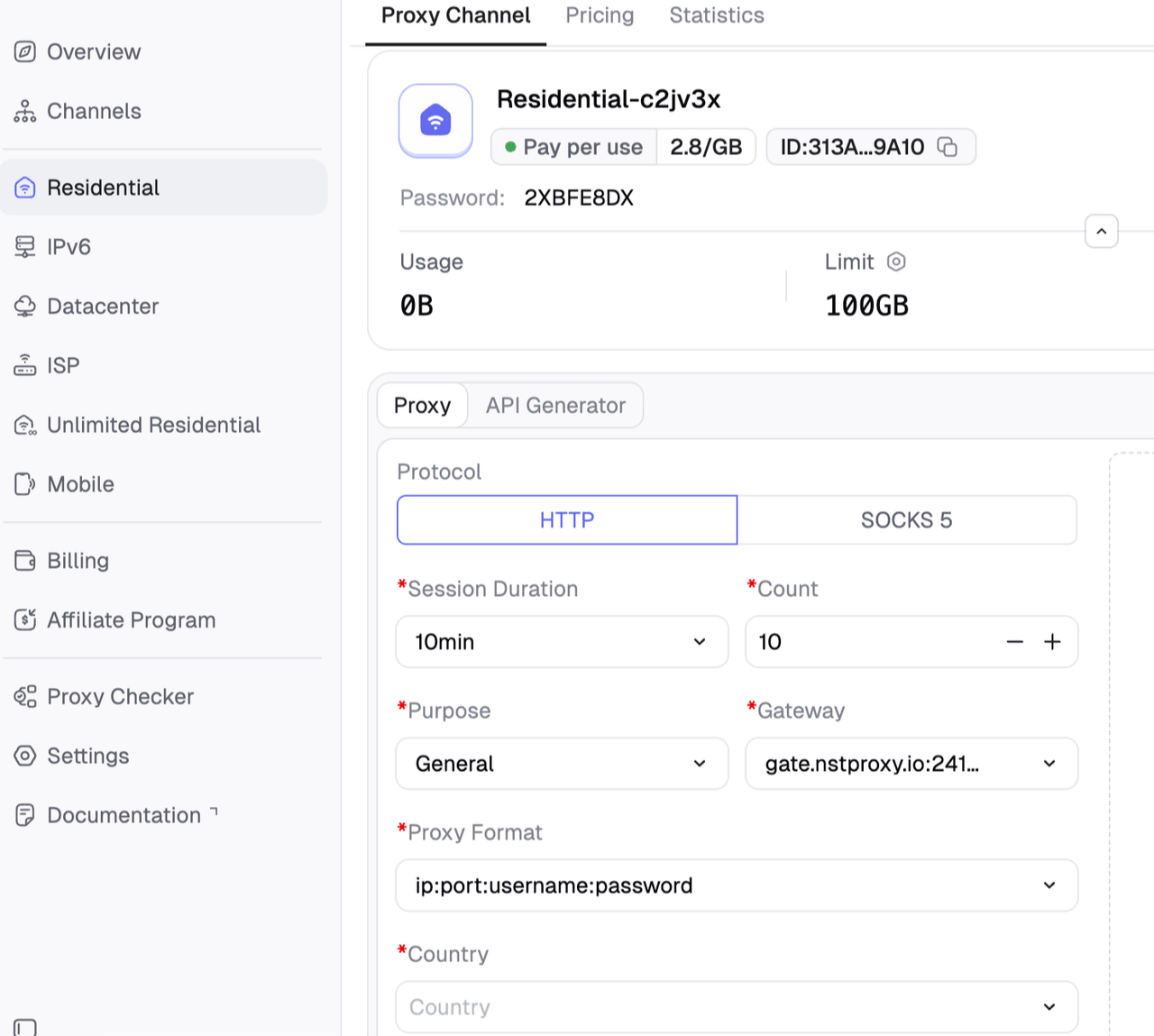
Step 4: Create a Channel
Then you can set up your Channel by choosing Country / Location; Session type (rotating or sticky); Protocol (HTTP / SOCKS5) and so on.
Step 5: Generate & Use Proxy
After creating a channel, generate your proxy credentials. You’ll get: Host/Port/Username/Password
Step 6. Install the Proxy SwitchyOmega 3 (ZeroOmega)
Search for the Proxy SwitchyOmega 3 and add it on your Chrome. Then paste and configure the proxy details in this extension.
Step 7. Visit Steam
Once you confirm the proxy works, it’s time to visit Steam. You can now browse the store, install the Steam client if needed, and explore the available games.
FAQs
1. How do I unlock Steam if my friends are blocked?
Go to your Steam profile, open Friends, select the Blocked tab, and unblock users from the blocked list. If many friends are blocked, secure your account first.
2. Is there an easy way to unblock 50 Steam friends?
Use the Blocked tab and look for Manage Blocked List. If your interface supports selecting multiple users, you can unblock several friends at once. Otherwise, Steam may require manual unblocking.
3. How do I unblock someone on Steam from their profile?
Open the user’s Steam profile, click the three-dot or More menu, and choose Unblock All Communication.
4. Why does Steam say someone is blocked?
It usually means communication with that user was blocked from your account. In other cases, “blocked” may refer to account restrictions, Community restrictions, or network access problems.
5. Can Nstproxy unblock Steam?
Nstproxy can help when Steam is blocked by a network, route, or regional access issue. It is useful for compliant access testing, public page checks, and diagnostics, not for bypassing bans or Steam rules.
Verdict
If Steam says a friend is blocked, unlock access from the Friends list or the user profile. If many friends are blocked, secure your account first, then manage your blocked list.
If Steam itself is blocked or unstable, use Nstproxy. They are the best Nstproxy product for this use case because they provide real residential IPs, broad location coverage, HTTP(S)/SOCKS5 support, flexible sessions, and stable access testing for Steam Store, Community, and public page workflows.