If YouTube is blocked by school, work, public Wi-Fi, or country restrictions, use a VPN, Youtube proxy, web proxy, Google Translate workaround, or mobile hotspot.
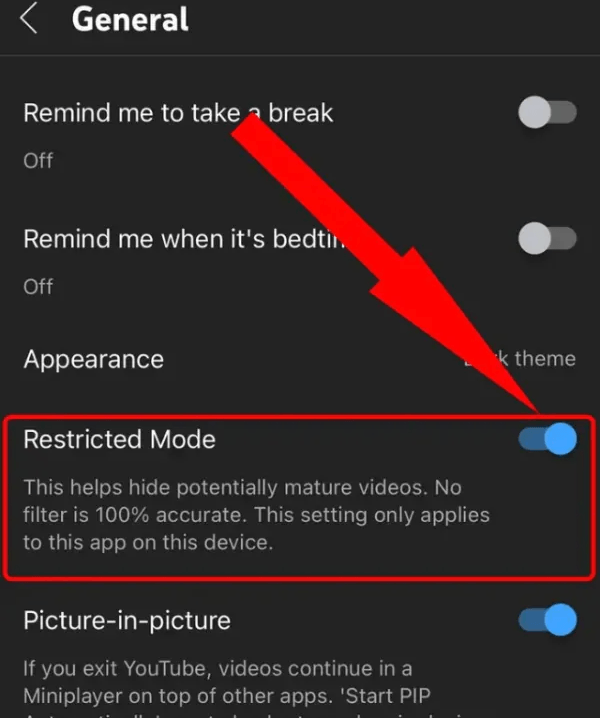
If YouTube hides videos, comments, or search results, check Restricted Mode first.
If creator features are locked, verify your YouTube account.
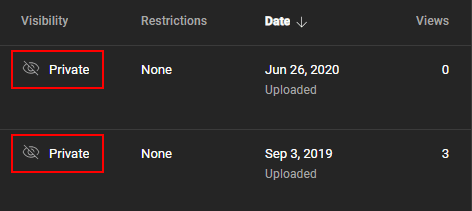
If your own video has a lock icon or cannot be viewed, check video privacy settings.
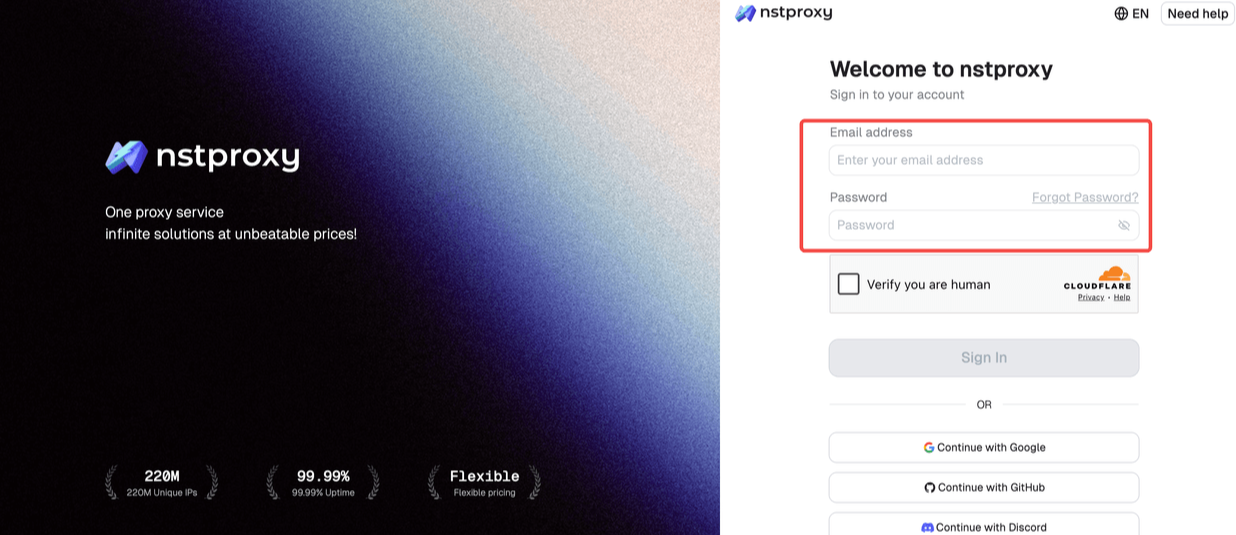
Nstproxy is useful when you need stable, location-specific YouTube access through high-quality proxy IPs.
Free web proxies may work for quick tests, but they are often slow, unstable, and unreliable for video playback.
Take a Quick Look
Tired of slow proxy websites, constant buffering, or unreliable connections? Nstproxy helps you enjoy a faster, smoother, and more stable online experience with premium IP resources and global coverage. Try Nstproxy today and browse with confidence.
YouTube can feel “locked” in several different ways. A student may open YouTube on school Wi-Fi and find that videos will not load. An office worker may see YouTube blocked on a company network. A parent may wonder why certain videos are hidden. A creator may upload a video and discover that custom thumbnails, longer uploads, or live streaming are unavailable. Someone else may see a lock icon next to their own video and not know why viewers cannot open it.
That is why user are searching for how to unlock YouTube for different reasons. It might mean bypassing a network block, turning off Restricted Mode, verifying a creator account, or changing a video from private to public.
The right fix depends on the cause. If YouTube is blocked by a school network, changing video privacy settings will not help. If Restricted Mode is on, using a proxy may not solve the real issue. This guide breaks the problem into four practical methods so you can choose the fix that actually matches your situation.
Before choosing a fix, identify why YouTube is locked. The most common causes fall into four groups.
1. First, YouTube may be blocked by a network. Schools, workplaces, public Wi-Fi providers, ISPs, or country-level restrictions may prevent YouTube from loading. In that case, the issue is not inside your YouTube account. The network is stopping access before YouTube can load normally.
2. Second, YouTube Restricted Mode may be turned on. Restricted Mode filters out potentially mature content and may also hide comments. It can be enabled by the user, a parent, a school, an organization, or a network administrator.
3. Third, creator features may be locked because your YouTube account is not verified. YouTube may require account verification before allowing features such as longer uploads, custom thumbnails, or live streaming.
4. Fourth, your own video may be locked because of privacy settings. A private video cannot be watched by everyone. An unlisted video will not appear in search. A scheduled video will not be public until the scheduled time.
Here is a simple way to match the problem to the fix:
Problem
What It Usually Means
Best Fix
YouTube will not open at school or work
Network block
VPN, proxy, web proxy, mobile hotspot
Some videos or comments are missing
Restricted Mode
Turn off Restricted Mode
Creator features are unavailable
Account not verified
Verify your YouTube account
Your own video has a lock icon
Video privacy setting
Change visibility in YouTube Studio
Video unavailable in your country
Geo-restriction
VPN, Nstproxy Residential Proxy, Smart DNS
YouTube TV shows wrong location
Location mismatch
Update YouTube TV location settings
How to Unlock YouTube in 4 Ways
Method 1. Bypass Network Blocks
If YouTube will not open on school Wi-Fi, work Wi-Fi, public Wi-Fi, or in a restricted country, you are probably dealing with a network block. In this case, YouTube settings are not the first thing to fix. You need a way to route your traffic through a network path that can access YouTube.
Common options include VPNs, web proxies, professional proxy services, Google Translate workarounds, and mobile hotspots. Use them only where you are allowed to access YouTube, especially on school or workplace networks.
Option 1. Use a VPN
A VPN is one of the easiest ways to unblock YouTube because it changes the IP address YouTube sees and routes traffic through a VPN server. It can help with school/work network blocks, ISP restrictions, and region-based video blocks.
How to use a VPN to unlock YouTube:
Choose a reputable VPN provider. Then download and install the VPN app on your device > Open the VPN app.
Select a server location where YouTube is available and connect to the VPN.
Open a browser and visit YouTube.
If YouTube still shows old location-based restrictions, clear YouTube cookies.
Refresh YouTube and test video playback.
If the video still does not load, try another nearby VPN server.
VPNs are convenient because they are simple to set up. The downside is that some VPN servers are crowded, slow, or already detected by certain platforms. If video quality drops, try a different server or use a proxy with better location control.
Option 2. Use a Web Proxy
A web proxy lets you open YouTube through another website. You enter the YouTube URL into the proxy page, and the proxy loads YouTube for you. This can be useful for quick access when you cannot install apps.
However, web proxies are not always good for video. Free web proxies are often slow, unstable, full of ads, or blocked by networks.
How to use a web proxy:
Open a trusted web proxy site and find the URL input box.
Enter https://www.youtube.com.
Choose a server location if the proxy offers one, and click the button to open the page.
Wait for YouTube to load inside the proxy page > Search for the video you want > Test whether playback works.
If video does not load, try another server or use a VPN/proxy service instead.
A web proxy is best for quick browsing. It is not the best choice for stable YouTube watching, logging into an account, or high-quality streaming.
Option 3. Use a Professional Proxy Service Like Nstproxy
A professional proxy service gives you more control than a free web proxy. Instead of loading YouTube inside a third-party webpage, you configure the proxy in your browser, device, or proxy manager. You can choose the proxy type, location, and session style.
This is where Nstproxy fits naturally. Nstproxy provides high-quality proxy for users who need stable, location-specific YouTube access. It is useful for watching region-specific content, testing how YouTube appears from different countries, managing browser-level YouTube access, or avoiding unreliable free proxy sites.
- Flexible Proxy Solutions: Choose from Residential, ISP, Datacenter, IPv6, and Mobile proxies to meet your various business needs.
- Fast Global Coverage: Access high-quality IPs from numerous countries and regions worldwide for greater flexibility.
- Stable & Secure Connections: Reliable performance with secure connections and minimal downtime for daily operations.
- Easy Integration: Simple setup and API support for quick integration with your tools and automation systems.
- Flexible IP Rotation: Rotate IPs automatically or manually to **enhance anonymity and avoid blocks.
- High Success Rate: Optimized network delivering high connection success for scraping, automation, and account management.
Nstproxy is a better choice than free proxy sites when you need speed, IP quality, location control, and a more stable YouTube session.
Option 4. Use Google Translate
Google Translate is sometimes mentioned as a simple workaround for blocked webpages. The idea is that you paste the YouTube URL into Google Translate and open the translated link through Google’s interface.
This method is not always reliable for full YouTube playback, but it may help open certain pages when a basic network filter blocks direct URLs.
How to try the Google Translate workaround:
Open Google Translate in your browser.
Paste the YouTube video or YouTube page URL into the text box.
Choose any target language > Click the translated link.
Wait for the page to open.
Test whether the video page loads.
If playback fails, use a VPN or proxy instead.
This is more of a quick workaround than a serious YouTube unlocking method.
Option 5. Use a Mobile Hotspot
If YouTube is blocked only on school, work, or public Wi-Fi, mobile data may solve the problem because it uses a different network.
How to use a mobile hotspot:
Open your phone settings and turn on mobile data.
Enable Personal Hotspot or Mobile Hotspot.
Connect your laptop, tablet, or other device to the hotspot > Open YouTube.
Test video playback.
Watch your data usage, because video streaming can use a lot of mobile data.
This method is simple and effective for network blocks, but it depends on your mobile plan and signal quality.
Method 2. Turn Off Restricted Mode
If YouTube opens but certain videos, comments, or search results are missing, the issue may be Restricted Mode. Restricted Mode is designed to filter potentially mature content. It can be turned on by the user, a parent, a school, an organization, or a network administrator.
This is different from a network block. If Restricted Mode is the problem, a proxy or VPN may not fix it, especially if the setting is locked by your account or organization.
How to Turn Off Restricted Mode on Desktop
Use this method if you are using YouTube in a browser on a laptop or desktop.
Open YouTube and sign in to your Google account.
Click your profile picture in the top-right corner.
Scroll down to click "Settings" and click Restricted Mode.
Check whether Restricted Mode is turned on, then toggle Restricted Mode off.
Refresh the YouTube page and search for the video again.
If Restricted Mode is locked, look for a message saying it is controlled by an administrator. This may happen on school, work, library, or managed family accounts. In that case, you may need to contact the account owner, parent, school, or network administrator.
How to Turn Off Restricted Mode on Mobile
Use this method for the YouTube app on Android or iPhone.
Open the YouTube app > Tap your profile picture.
Scroll down to tap Settings > tap General > Find Restricted Mode.
Turn Restricted Mode off. Then close the YouTube app and open it again.
If the setting keeps turning back on, check whether your device is controlled by Family Link, Screen Time, a school account, or a workplace profile.
What If Restricted Mode Is Locked?
If Restricted Mode is locked, try these checks:
Make sure you are signed into the correct Google account.
Check whether your account is managed by a parent, school, or workplace.
Try YouTube from another browser.
Try YouTube on another network.
Check whether a browser extension or content filter is forcing Restricted Mode.
If you are on a managed network, contact the administrator.
Restricted Mode can be controlled at the account, app, browser, or network level, so the fix depends on where the lock is coming from.
Method 3. Verify Your YouTube Account
For creators, “unlock YouTube” may mean unlocking creator features. YouTube may limit some features until you verify your account. This is common for features like longer uploads, custom thumbnails, and live streaming.
If you are trying to upload longer videos or use creator tools and YouTube says the feature is not available, account verification is the first thing to check.
What YouTube Verification Can Unlock
YouTube verification may help unlock features such as:
Longer video uploads
Custom thumbnails
Live streaming eligibility
More complete creator account functionality
Better access to certain YouTube Studio features
Verification does not mean your channel gets a verification badge. It simply confirms your account through a phone number or other verification method.
How to Verify Your YouTube Account
Open YouTube and sign in to the Google account connected to your channel.
Go to YouTube Studio > Open Settings or Channel settings.
Look for Feature eligibility or account verification options.
Choose the verification method offered by YouTube.
Select text message or voice call if phone verification is required.
Enter your phone number and enter the verification code. Then submit the verification form.
Return to YouTube Studio and check whether the locked feature is now available.
If the feature still appears locked, wait a short time and refresh YouTube Studio. Some features may also require channel history, no active strikes, or other eligibility requirements.
Method 4. Change Video Privacy Settings
If you are trying to unlock your own YouTube video, the problem may be privacy settings. A video can look locked because it is private, unlisted, scheduled, age-restricted, or limited by permissions.
This is common when creators upload a video and share the link, but viewers say they cannot watch it.
Public vs Unlisted vs Private
Privacy Setting
Who Can Watch
Best For
Public
Anyone can watch and find it
Normal published videos
Unlisted
Anyone with the link can watch
Private sharing without search visibility
Private
Only selected users can watch
Personal or internal videos
Scheduled
Becomes public later
Planned publishing
Draft
Not fully published
Videos still being prepared
If your video is private, most viewers cannot open it. If it is unlisted, viewers need the exact link. If it is scheduled, it will remain unavailable until the scheduled release time.
How to Change YouTube Video Privacy Settings
Open YouTube Studio and sign in to the channel that owns the video.
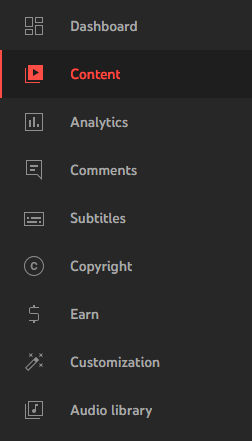
Click Content in the left menu > Find the video you want to unlock.
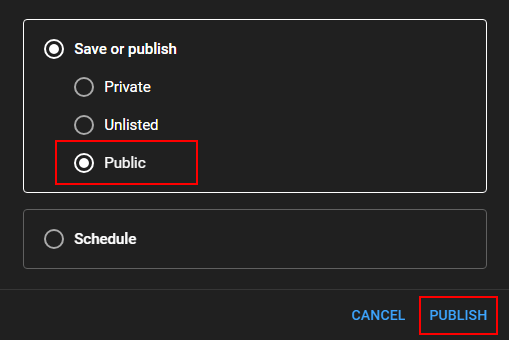
Click the video title or pencil/edit icon > Find the Visibility section.
Choose Public, Unlisted, or Private.
If you want everyone to watch it, choose Public.
If you only want people with the link to watch it, choose Unlisted.
If the video is scheduled, check the publish date and time.
Click Save. Then open the video link in another browser or incognito window.
If viewers still cannot watch the video, check for age restriction, copyright claims, regional restrictions, or channel permissions.
Which Unlock Method Should You Use?
If you are not sure where to start, use this table.
Your Problem
Best Method
YouTube blocked at school or work
VPN, proxy, mobile hotspot
YouTube blocked by region
VPN, Nstproxy Residential Proxy, Smart DNS
YouTube opens but hides videos
Turn off Restricted Mode
YouTube comments are missing
Check Restricted Mode
YouTube creator features are locked
Verify your account
Your own video has a lock icon
Change video privacy settings
YouTube TV location is wrong
Update location settings
Chrome cannot open YouTube
Clear cache, disable extensions, test VPN/proxy
Free proxy is too slow
Use Nstproxy Residential or Static ISP Proxy
The key is to match the method to the cause. Do not start with a VPN if the real issue is a private video. Do not change video settings if the school network blocks YouTube entirely.
Common Problems When Unlocking YouTube
1. YouTube Still Shows Restricted Mode
If Restricted Mode stays on after you turn it off, it may be controlled by a parent, school, workplace, or network administrator. Try another account, another browser, and another network to identify where the control is coming from.
2. YouTube Still Shows the Wrong Location
YouTube may use cookies, IP address, browser location, account settings, or device location. Clear YouTube cookies, check your IP location, and make sure your VPN or proxy is active before opening YouTube.
3. Proxy Works but Video Does Not Load
This may happen if the proxy is too slow, the protocol is wrong, the IP is blocked, or YouTube still has old cookies. Recheck host, port, username, password, protocol, and IP location. If you are using a free proxy, switch to a higher-quality option like Nstproxy.
4. YouTube Works on Phone but Not Wi-Fi
This usually means the Wi-Fi network blocks YouTube. Use mobile data, a hotspot, VPN, or proxy if allowed.
5. YouTube App Works but Chrome Does Not
The problem may be Chrome extensions, cookies, DNS settings, or browser policies. Try incognito mode, disable extensions, clear cache, or use another browser.
FAQs
Q1. How do I unlock YouTube if it is blocked?
First identify why it is blocked. If it is a network block, use a VPN, proxy, mobile hotspot, or web proxy. If it is Restricted Mode, turn it off in YouTube settings. If it is your own video, check privacy settings in YouTube Studio.
Q2. Why is YouTube locked on my phone?
It may be locked by Restricted Mode, Screen Time, Family Link, app lock settings, device controls, or the YouTube app’s screen lock feature. Check both YouTube settings and device settings.
Q3. Can I use a proxy to unlock YouTube?
Yes. A proxy can route YouTube traffic through another IP address, which may help with network blocks or region-specific access. For better stability, use a professional proxy service instead of free web proxies.
Q4. Is Nstproxy good for unlocking YouTube?
Yes. Nstproxy is useful for users who need stable, location-specific YouTube access. Residential Proxies are good for region-based access, while Static ISP Proxies are better for stable browser sessions.
Q5. Is VPN better than proxy for YouTube?
A VPN is easier for general unblocking because it works across the whole device. A proxy is better when you want browser-level control, location targeting, or a dedicated YouTube setup. For stable YouTube access, Nstproxy Residential or Static ISP proxies can be stronger than free proxy sites.
Q6. Why are my YouTube creator features locked?
Your account may need verification, or your channel may not meet feature eligibility requirements. Check YouTube Studio and verify your account if YouTube requests it.
Conclusion
To unlock YouTube, first identify what kind of lock you are dealing with. If YouTube is blocked by a school, workplace, public Wi-Fi, ISP, or region, use a VPN, proxy, web proxy, Google Translate workaround, or mobile hotspot. If YouTube is filtering content, turn off Restricted Mode. If creator features are locked, verify your YouTube account. If your own video cannot be viewed, check its privacy settings in YouTube Studio.
For users who need stable, location-specific YouTube access, Nstproxy are stronger than free proxy sites because they provide better IP quality, location control, and session stability. The best solution is not the same for every user, but once you know why YouTube is locked, the right fix becomes much easier to choose.
How to Scrape LinkedIn Profiles in 2026: Step-by-Step Guide
Scrape public LinkedIn profile data with Python the compliant way: what's legal, what hiQ v. LinkedIn really decided, and working requests/BeautifulSoup code for name, headline, location, and current role — no login, no connections data, no bypassing LinkedIn's bot detection.
Kai Watanabe
Sep. 7th 2026
Experience Nstproxy - Start Your Free Trial Today
110M+ real IPs with 99.9% access success
Get immediate access to premium residential, datacenter, IPv6 and ISP proxy pools.
Blazing-fast average response ~0.5s for high-concurrency tasks