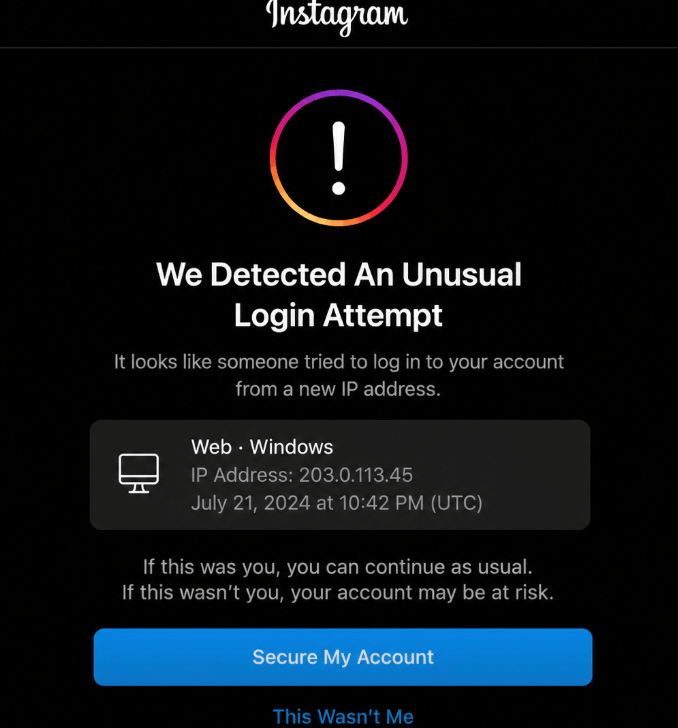
An Instagram IP ban can feel sudden and confusing. Your feed stops loading, the app refuses to log in, actions fail, or every account connected to the same Wi-Fi starts having problems. In many cases, Instagram does not show a clear message saying, “Your IP has been banned.” Users are left trying to figure out whether the issue is the account, the device, the app, or the network.
An Instagram IP ban is a network-level restriction where Instagram limits access or activity from a specific IP address. It can happen because of suspicious login behavior, automation, spam-like activity, too many accounts on one connection, poor IP reputation, or repeated policy violations.
For everyday users, the safest fixes are to stop risky activity, secure the account, test another network, clear app data, wait, and appeal through Instagram if the account itself is restricted. For social media teams, creators, agencies, and ecommerce brands managing legitimate Instagram workflows, a reliable proxy setup can also help. In that case, Nstproxy are usually the best first choice, while Nstproxy are better for stable long-term sessions.
An Instagram IP ban happens when Instagram restricts access or activity from a specific internet connection. Your IP address is the network identity assigned to your home Wi-Fi, office connection, mobile network, VPN, proxy, or data center server.
If Instagram sees risky activity from that IP, it may reduce trust in the connection. As a result, users on that IP may experience login failures, action blocks, feed loading problems, or broader access issues.
An Instagram IP ban can affect:
One account using the IP
Multiple accounts on the same Wi-Fi
App and browser access from the same network
Login attempts from that connection
Actions such as following, liking, commenting, messaging, or posting
However, not every Instagram restriction is an IP ban. Instagram may also restrict an account, device, session, browser fingerprint, or specific action type.
Signs You May Have an Instagram IP Ban
You may be dealing with an Instagram IP ban if the problem follows your network rather than just your account. Common signs include:
Instagram works on mobile data but not on your home Wi-Fi
Several accounts fail on the same network
The app keeps showing “Try again later”
Your feed, comments, or DMs stop loading
Login attempts fail only from one connection
Instagram works on another trusted network
The same issue appears in both app and browser
Other people on the same Wi-Fi also have Instagram problems
A quick test is to switch networks. If Instagram fails on Wi-Fi but works on mobile data, your IP address or local network may be part of the problem.
Instagram IP Ban vs Account Ban vs Device Ban
Before trying to fix the issue, identify what kind of restriction you are facing.
Restriction Type
What It Means
Common Signs
Best Fix
IP ban
Instagram restricts a network IP
App fails on one Wi-Fi but works elsewhere
Test another network, improve IP reputation, use a clean proxy if appropriate
Account restriction
Instagram limits the account itself
Same account fails everywhere
Appeal, secure account, stop violating behavior
Device restriction
Instagram distrusts the device
Other accounts may fail on same phone
Update app, clear data, check device integrity
Action block
Specific activity is limited
Cannot follow, like, comment, or DM
Stop activity and wait
Session issue
Login/session data is stale or suspicious
Browser/app behaves inconsistently
Clear cache, cookies, app data
This matters because changing your IP will not fix every Instagram problem. If your account is restricted, you need to resolve the account issue. If your device or behavior is flagged, a new IP alone may not help.
Part 2. Why Instagram IP Bans Happen?
Instagram uses trust signals to protect the platform from spam, abuse, fake engagement, and automated behavior. IP reputation is one of those signals.
Common causes of an Instagram IP ban include:
Too many login attempts from the same IP
Managing many accounts from one network
Rapid follows, unfollows, likes, comments, or DMs
Bot or automation tool usage
Creating many accounts from one connection
Logging in from inconsistent locations
Using free VPNs or abused public proxies
Sharing an IP with other suspicious users
Repeated password resets or failed logins
Browser fingerprint and IP location mismatch
Violations linked to accounts using that network
For example, a social media manager may handle several client accounts from one office Wi-Fi. Even if the work is legitimate, too many accounts and repeated actions from one IP can look unusual. Instagram may treat that network as higher risk.
Part 3. How Long Does an Instagram IP Ban Last?
There is no fixed timeline. An Instagram IP ban may last:
A few hours
24 to 48 hours
Several days
A week or more
Longer if suspicious activity continues
Temporary action blocks often expire faster. Repeated abuse, automation, or poor IP reputation can extend the problem.
If your access improves after switching networks, the issue may be IP-related. If the same account remains restricted everywhere, it is more likely an account-level problem.
Part 4. Will Instagram Tell You If Your IP Is Banned?
Usually, no. Instagram does not always clearly say that your IP address is banned. Instead, users infer it from symptoms.
You may see:
“Try again later”
“We restrict certain activity”
Login errors
Feed loading failures
Action blocks
Temporary access failures
Because the warning is often unclear, diagnosis matters. Test another network, another device, and another account before assuming the issue is only your IP.
Part 5. How to Fix an Instagram IP Ban Safely
The safest recovery process is to reduce risk signals first, then test access from a clean and stable environment.
Method 1: Stop High-Risk Activity
If Instagram is already restricting your account, the first step is to stop any behavior that may appear automated or spam-like.
This includes mass following or unfollowing, sending bulk DMs, posting repetitive comments, repeatedly attempting to log in, rapidly switching between accounts, using bots, or running scraping and unauthorized automation tools. Continuing these activities while your account is restricted can increase Instagram’s suspicion and potentially extend the duration of the restriction.
Method 2: Test Instagram on Another Network
Switch from Wi-Fi to mobile data, or try a different trusted network.
If Instagram works on another network, your original IP may be restricted or low-trust. If it fails everywhere, the issue may be account-level, device-level, or session-related.
Method 3: Restart Your Router
Some residential internet providers assign dynamic IPs. Restarting your router may refresh your IP address.
This does not work for every ISP, but it is a simple step for normal home users.
Method 4: Clear App Cache and Browser Data
Clear Instagram app cache, browser cookies, and stale session data. Then restart the app or browser.
This helps when Instagram is combining IP signals with old cookies or broken login sessions.
Method 5: Secure Your Account
If Instagram suspects compromise, secure the account before trying again.
Recommended actions:
Change your password
Enable two-factor authentication
Remove suspicious third-party apps
Check login activity
Confirm your email and phone number
Avoid repeated login attempts from different locations
Method 6: Wait Before Retrying
If the restriction is temporary, waiting can help. Avoid testing every few minutes. Constant retries can look suspicious.
A practical waiting period is several hours to 24 hours for mild restrictions. More serious cases may require longer.
Method 7: Appeal If the Account Is Restricted
If Instagram provides an appeal or review option, use the official process. A proxy cannot remove a true account enforcement action.
Use an appeal when:
Your account is disabled
Instagram says you violated rules
You see an official review prompt
You believe the restriction is a mistake
Method 8: Use a Clean Proxy Setup -Nstproxy Way [Hot]
Nstpoxy is a good choice if you need a stable and trusted connection for Instagram. It helps provide consistent IPs for longer sessions, fewer IP changes, smoother agency or brand account management, and more reliable access without frequent rotation.
- Fast & Stable Connection: Enjoy smooth browsing, streaming, and account management with reliable speeds and stable proxy performance.
- High Anonymity & Privacy: Nstproxy helps protect your real IP address and improves online privacy with secure and anonymous connections.
- Flexible Proxy Options: Choose from residential, ISP, rotating, or static proxies based on different business and personal needs.
- Easy to Use: Nstproxy offers a simple setup process and user-friendly dashboard, making proxy management easy even for beginners.
For Instagram use cases, Nstproxy’s residential proxies are ideal options, which offerreal residential IPs in 190+ countries with precise geo-targeting. For more advanced option, ISPs are better when you need a more stable, long-session connection.
Step 1: Sign Up
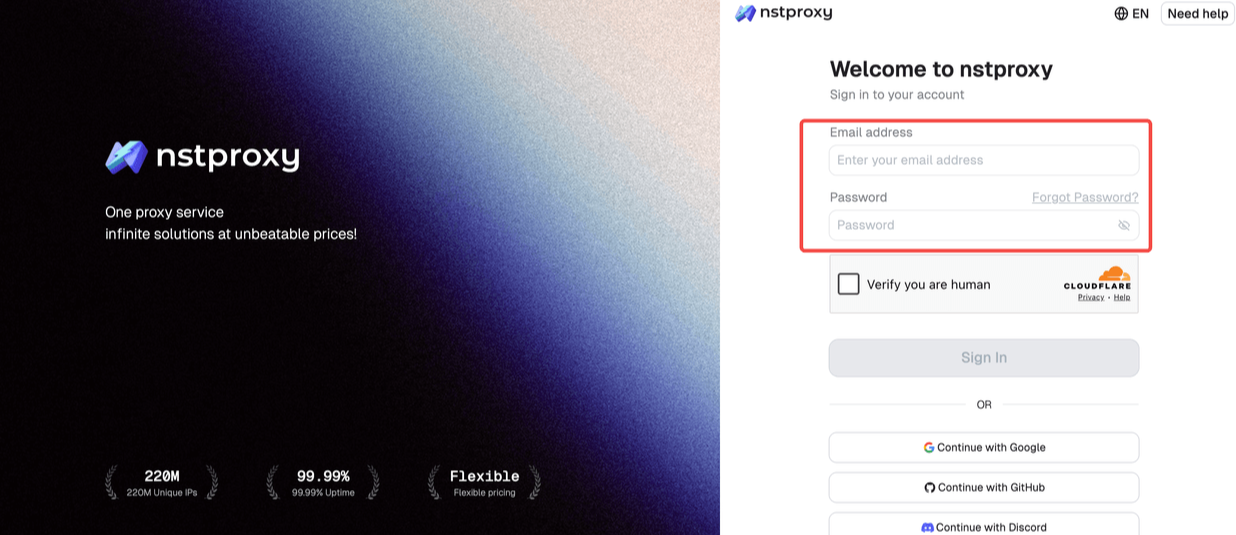
Go to Nstproxy official, and then create your account using your email. Once registered, you’ll get access to your dashboard.
Step 2: Add Funds
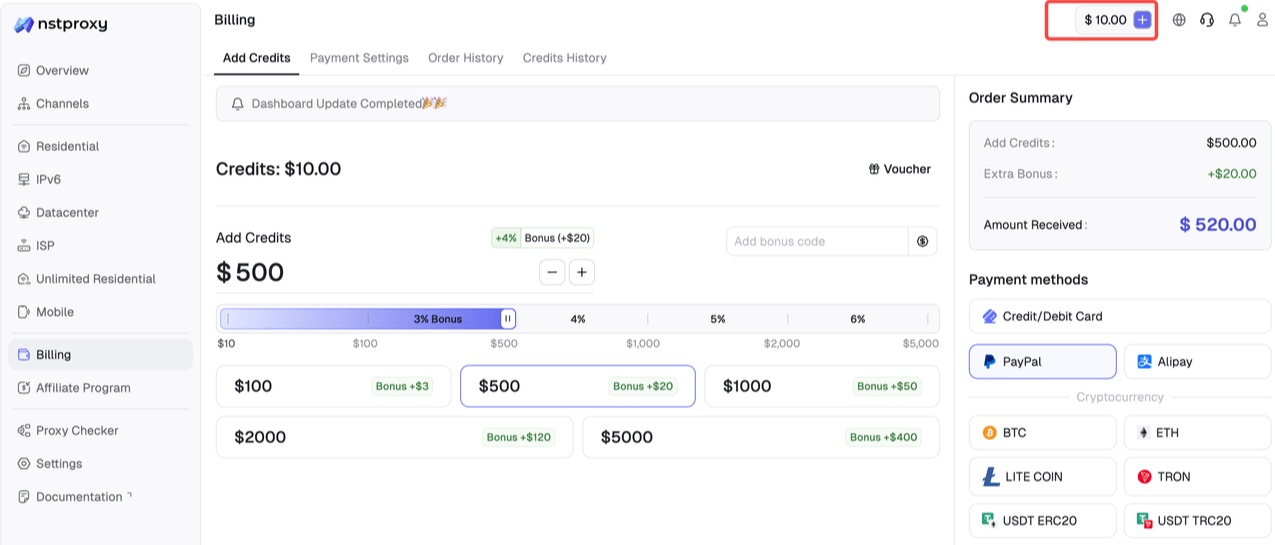
Once you have registered, you can top up your balance before using proxies. Simple go to Dashboard > Billing tab.
Alternatively, Nstproxy also supports a pay-as-you-go model, so you only pay for what you use.
Step 3: Choose Proxy Type
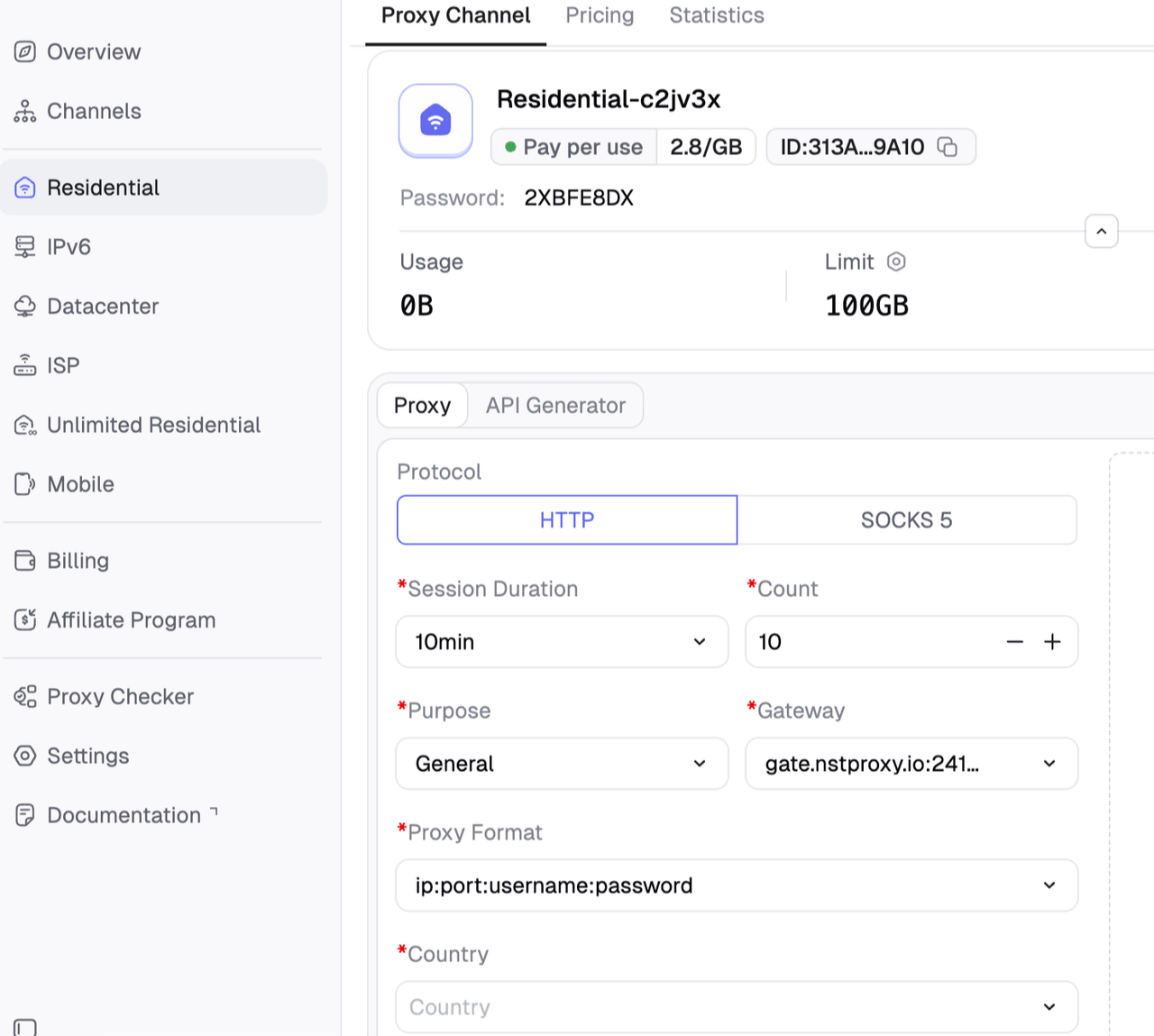
Next, select the proxy type that fits your needs by switching to the specific channel.
Step 4: Create a Channel
Then you can set up your Channel by choosing Country / Location; Session type (rotating or sticky); Protocol (HTTP / SOCKS5) and so on.
Step 5: Generate & Use Proxy
After creating a channel, generate your proxy credentials. You’ll get: Host/Port/Username/Password
Nstproxy’s ISP proxy page emphasizes static ISP-sourced IPs, persistent sessions, country-level targeting, HTTP/SOCKS5 integration, and unlimited bandwidth by IP plan. That makes ISP proxies a strong option for account environments where consistency is more important than constant rotation.
Part6. FAQs
Q1. Residential vs ISP vs Datacenter Proxies for Instagram
Proxy Type
Best For
Instagram Fit
Residential Proxies
General access recovery, regional testing, account separation
Best overall first choice
ISP Proxies
Long sessions, stable account management, consistent IP identity
Best upgrade option
Datacenter Proxies
Speed-focused public data tasks
Less ideal for Instagram trust
Free Proxies
Not recommended
High risk, unstable, often abused
For Instagram IP ban recovery, avoid free proxies. They are often shared, slow, abused, and more likely to trigger additional security checks.
Q2. Is There an Instagram IP Ban Checker?
There is no official public Instagram IP ban checker. Most “checkers” can only test whether Instagram loads from your connection or whether your IP appears on general reputation lists.
The better way to check is practical diagnosis:
Try Instagram on Wi-Fi.
Try Instagram on mobile data.
Try Instagram in browser and app.
Try another trusted device.
Check if multiple accounts fail on the same network.
Test with a clean residential or ISP proxy.
If Instagram works through a clean connection but fails on your original network, your IP or network reputation may be the issue.
Q3. How to Prevent Future Instagram IP Bans
Prevention is mostly about consistency and behavior.
Use this checklist:
Avoid mass follow/unfollow activity.
Do not send bulk DMs.
Avoid repetitive comments.
Do not use suspicious automation.
Use two-factor authentication.
Remove risky third-party apps.
Avoid logging into many accounts from one IP.
Keep account location signals consistent.
Use high-quality residential or ISP proxies for legitimate workflows.
Do not rely on free VPNs or public proxies.
Monitor warnings and slow down immediately.
For agencies and social media teams, NSTProxy can help create a cleaner setup by assigning more stable, trusted IP environments to different client workflows.
Q4. Common Mistakes After an Instagram IP Ban
Avoid these mistakes:
Repeatedly logging in after failures
Using free proxy lists
Switching IPs every few minutes
Creating many new accounts immediately
Returning to automation too soon
Ignoring account warnings
Mixing many accounts in one browser profile
Assuming every issue is only an IP ban
A careful recovery plan is better than panic switching between networks.
Final Recommendation
An Instagram IP ban usually means Instagram has lowered trust in your network because of suspicious activity, too many accounts, automation-like behavior, poor IP reputation, or repeated login issues.
For normal users, start with safe basics: stop risky activity, test another network, restart your router, clear app data, secure your account, wait, and appeal if needed.
For creators, agencies, ecommerce teams, and social media managers handling legitimate Instagram workflows, Nstproxy are the best starting point for access recovery, regional testing, and account environment separation. If you need longer sessions and a consistent IP identity, Nstproxy ISP Proxies are the better upgrade.