Twitch IP Ban: How to Know What Happened and Fix Access Issues
You open Twitch and suddenly something is wrong. Maybe the site will not load on your Wi-Fi. Maybe you can watch streams but cannot chat. Maybe one channel blocks you, but the rest of Twitch works. Or maybe Twitch works perfectly when you switch to mobile data.
That is when many users start wondering: “Did Twitch IP ban me?”
It is a fair question, but a Twitch IP ban is not always the real cause. In many cases, the problem is actually an account suspension, channel ban, chat ban, browser session issue, VPN problem, public Wi-Fi restriction, or shared network reputation issue.
Before changing accounts, resetting routers, or buying tools you do not need, the first step is to figure out what kind of ban or access problem you are dealing with.
A Twitch IP ban is different from a Twitch account suspension.
If only one channel blocks you, it is probably a channel ban, not an IP ban.
If Twitch works on mobile data but not Wi-Fi, your network or IP may be the problem.
Twitch can collect IP address and device/browser information as part of service operation and security.
If your account is suspended, the right path is Twitch’s appeal process.
If the issue is network-based, Nstproxy can help provide a cleaner and more stable IP environment.
A proxy should not be used as a replacement for resolving official Twitch account enforcement.
What Is a Twitch IP Ban?
A Twitch IP ban means access is restricted based on the IP address or network you are using. Since one public IP can be shared by multiple people on the same Wi-Fi, office network, school network, dorm network, VPN server, or public hotspot, an IP-based restriction can affect more than one user.
But here is the important part: most Twitch problems people call “IP bans” are not actually confirmed IP bans. Twitch has several types of enforcement and moderation actions, and each one behaves differently.
For example, if your account is suspended, switching Wi-Fi will not fix the real issue. If you are banned from one streamer’s channel, you may still be able to watch other channels. If Twitch fails only on one network but works on mobile data, then the network or IP reputation may be the problem.
That distinction matters because each situation needs a different fix.
Twitch IP Ban vs Account Suspension vs Channel Ban
Issue Type
What It Affects
Main Sign
Best Next Step
IP or network issue
Access from one network/IP
Twitch works on another network
Test network, DNS, VPN, or proxy setup
Account suspension
Your Twitch account
Account-level warning or enforcement notice
Use Twitch Appeals
Channel ban
One streamer’s channel
You cannot chat in one channel
Request unban from that channel
Chat restriction
Chatting ability
You can watch but cannot chat
Check account/chat status
Browser/session issue
One browser or device
Works in incognito or another browser
Clear cookies, cache, extensions
Twitch’s official help resources separate account enforcement, suspensions, and chat bans rather than treating every restriction as an IP ban. Twitch also provides an appeals process for account and moderation-related actions through its Safety Center.
Does Twitch Really Use IP Bans?
Twitch can collect IP address information. Its Privacy Notice states that Twitch automatically collects information such as IP address, device and browser types, identifiers, and interaction data when users access Twitch services.
However, that does not mean every Twitch access issue is an IP ban. SERP results show that even Twitch community discussions often describe IP bans as complicated and not always effective, especially because shared IPs can affect innocent users.
A better way to think about it is this:
Twitch may use IP and network signals as part of platform safety, abuse prevention, login security, and moderation systems, but users should not assume that every blocked page, chat issue, or login problem is a direct IP ban.
How to Know If You Are IP Banned on Twitch
The clearest way to diagnose the issue is to compare where Twitch works and where it fails.
1. Twitch does not load on one network
If Twitch fails on your home Wi-Fi, school Wi-Fi, office network, or public hotspot, but works on mobile data, the issue may be network-related. This could involve IP reputation, local firewall rules, DNS problems, VPN detection, or ISP routing.
2. Multiple devices fail on the same Wi-Fi
If your phone, laptop, and tablet all fail on the same network, but work elsewhere, that points away from a single-device browser issue. It suggests something about the network itself is causing the problem.
3. Your account works somewhere else
If you can log into the same Twitch account on mobile data or another trusted network, your account is probably not fully suspended. The issue may be tied to your original IP or local network.
4. Only one Twitch channel blocks you
If you can use Twitch normally but cannot chat in one channel, this is likely a channel ban. Streamers and moderators can ban users from specific channels. That does not mean Twitch banned your IP across the whole platform.
5. You see an account suspension message
If Twitch gives you an account enforcement or suspension notice, treat it as an account issue. In that case, changing your network will not solve the core problem. You need to review the notice and use Twitch’s official appeal route.
Common Reasons Twitch Access Gets Blocked
1. Account suspension
A Twitch account suspension happens when Twitch takes action against the account itself. This can affect your ability to log in, stream, chat, or use platform features. If the issue follows your account everywhere, it is probably not a simple IP problem.
2. Channel ban
A channel ban is limited to one creator’s channel. You may still watch other streams, follow other channels, and use Twitch normally outside that channel. If the ban is channel-specific, the right route is usually the channel’s unban request option, not a network fix.
3. Shared network reputation
Public Wi-Fi, dorm networks, office networks, and shared VPN servers can have messy histories. If many users share the same IP, one person’s spam, abuse, or unusual behavior can make that IP look risky.
This is why Twitch might work at home but fail at school, or work on mobile data but not on a public network.
4. VPN or proxy detection
Some VPNs and free proxies are heavily reused. If too many people access Twitch through the same IP, it may trigger login checks, chat issues, or access friction. Low-quality proxies can also disconnect or rotate IPs too often, which makes the session look unstable.
5. Browser or cookie problems
Sometimes Twitch is not blocking you at all. Old cookies, broken login sessions, ad blockers, script blockers, and privacy extensions can make Twitch fail in a way that feels like a ban.
6. ISP or routing issues
Twitch access can also fail because of DNS, ISP routing, or local network restrictions. If many users on the same ISP or network report problems, the cause may be technical rather than enforcement-related.
What to Do If You Think Twitch IP Banned You
Do not start by making a new account or randomly switching tools. Start with a clean diagnosis.
Method 1. Test Twitch on another network
This is the fastest way to separate account problems from network problems.
Turn off Wi-Fi on your phone.
Enable mobile data.
Open Twitch in the app or browser.
Log into the same Twitch account.
Test watching streams, opening channels, and using chat.
If Twitch works, your original network may be the issue.
If Twitch still fails, the problem may be account-related.
If your account works on mobile data, you probably do not have a full account suspension. You may be dealing with an IP, DNS, VPN, or local network problem.
Method 2. Check whether it is only a channel ban
A channel ban can feel confusing because Twitch still works, but one specific place does not.
Open several different Twitch channels.
Try watching and chatting in more than one stream.
Check whether the issue appears everywhere or only in one channel.
If only one channel blocks you, look for the channel’s unban request option.
Keep the request short, polite, and specific.
If the issue is channel-specific, changing IPs is the wrong solution. You need to deal with the channel moderation path.
Method 3. Check your Twitch account status
If your whole account is affected, look for official messages first.
Check your Twitch notification or enforcement message.
Check the email connected to your Twitch account.
Look for the reason Twitch gave for the action.
Visit the Twitch Appeals page if you believe the enforcement was incorrect.
Prepare a calm explanation with useful context.
If Twitch says your account is suspended, focus on the appeal. Network changes will not remove an official account action.
Method 4. Clear browser data and disable extensions
If Twitch fails only in one browser, the fix may be simple.
Clear Twitch cookies and cached files.
Disable ad blockers, script blockers, and privacy extensions temporarily.
Open Twitch in a private or incognito window.
Try another browser.
Log in again and test Twitch.
If Twitch works after this, the problem was probably a browser session or extension conflict.
Method 5. Restart your router or change DNS
If your ISP gives you a dynamic IP, restarting your router may refresh your network identity. DNS changes may also help if the issue is routing-related.
Check your current public IP using an IP checker.
Restart your router.
Wait a few minutes before reconnecting.
Check whether your public IP changed.
Open Twitch again.
If Twitch still fails, test a trusted DNS provider.
This method will not help if your account is suspended, but it can help confirm whether the issue is network-related.
Use Nstproxy as a Stable IP Solution for Twitch Access Issues
If Twitch works on mobile data but not on your current Wi-Fi, VPN, public network, or free proxy, your problem may be tied to the IP environment rather than the account itself.
That is where Nstproxy can be a practical solution.
Nstproxy is a proxy provider that offers high-quality proxy options such as Static ISP Proxies and Residential Proxies. For Twitch-related access troubleshooting, the goal is not to “erase” a real Twitch suspension. The goal is to create a cleaner, more stable IP environment when your current network is unreliable, shared, blocked, or flagged.
For most Twitch access issues, Nstproxy Static ISP Proxy is the best starting point. It gives you a stable IP that behaves more like a normal ISP connection, which is better for regular Twitch browsing, watching, and logged-in sessions. If your current VPN rotates IPs too often or uses overcrowded servers, a static ISP proxy can provide more consistency.
Stable sessions:
Twitch sessions can become unstable if your IP changes repeatedly. Nstproxy Static ISP Proxies help keep one consistent IP during browsing, watching, and login sessions.
Cleaner IP quality:
Free proxies and crowded VPN servers often have poor reputations because many users share them. Nstproxy provides higher-quality IP resources that are easier to test and manage.
Residential-style trust signals:
Residential and ISP proxy types tend to look more like normal user connections than datacenter traffic. This can be useful when Twitch access problems are caused by suspicious shared IP environments.
Location consistency:
Logging in from one region, then suddenly switching to another region, can create account friction. Nstproxy lets users choose a more consistent location close to their normal access region.
Flexible setup:
Nstproxy supports common proxy configurations, including HTTP and SOCKS5, which can be used with browser proxy tools or profile managers.
How to use Nstproxy for Twitch access testing
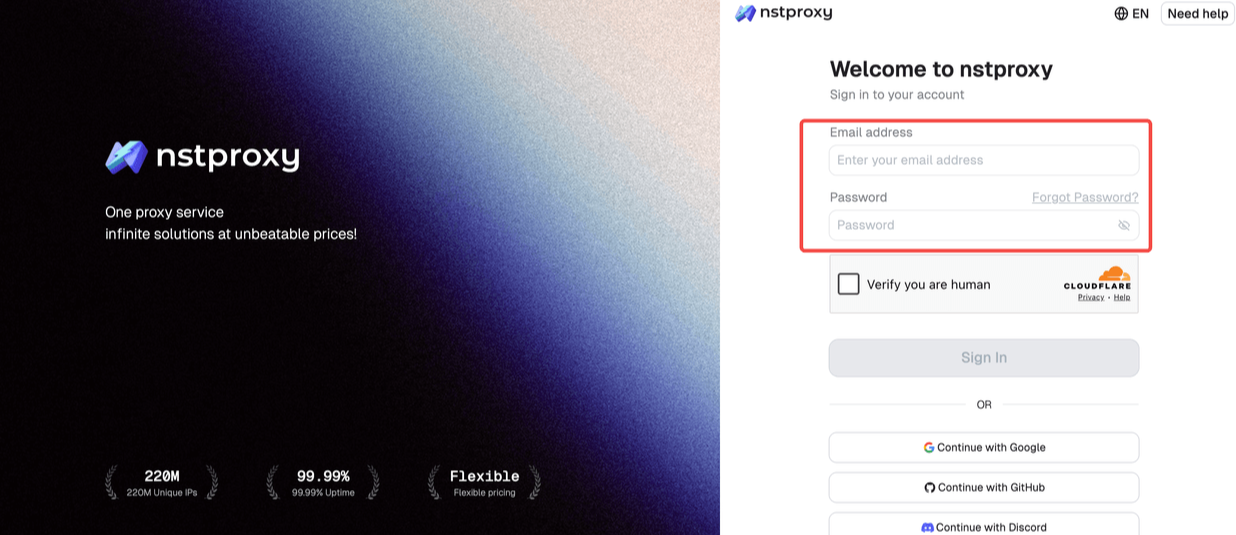
Before you start, please go to Nstproxy official and sign in with your emal address.
Choose Nstproxy Static ISP Proxy if you need stable Twitch access.
Select a proxy location close to your usual login region and generate the proxy.
Copy the proxy host, port, username, and password.
Configure the proxy in your browser or proxy manager.
Clear Twitch cookies before testing.
Open Twitch and log in once.
Keep the same IP during the session.
Test watching streams, browsing channels, and using chat.
If Twitch shows an account suspension notice, stop network testing and use Twitch Appeals.
This setup is especially useful when you are trying to confirm whether your original network is the issue. If Twitch works through a stable Nstproxy setup but not through your school, office, VPN, or public Wi-Fi, the original network is likely part of the problem.
Note: Nstproxy cannot remove a Twitch account suspension. It cannot reverse a channel ban. It cannot make a moderator unban you from a specific chat. It also should not be used to repeat behavior that already triggered enforcement.
If Twitch has taken official action against your account, the correct solution is the Twitch appeal process.
How to Appeal a Twitch Ban
If your issue is account-related or channel-related, use the proper appeal route instead of treating it as an IP problem.
1. When you should appeal
You should appeal if you received an account suspension, enforcement notice, or channel ban that you believe was incorrect or misunderstood.
Before appealing, read the notice carefully. Identify whether it is a platform-level suspension, chat-related action, or channel-specific ban.
2. How to submit an appeal
Review the Twitch enforcement message.
Identify what rule or action Twitch mentioned.
Go to Twitch’s official appeal page.
Write a short, clear explanation.
Include relevant context if there was a misunderstanding.
Avoid blaming, insulting, or sending repeated appeals.
Wait for review.
A good appeal is calm and specific. Twitch does not need a long emotional message. It needs useful context.
Sample Twitch ban appeal message
You can use a simple structure like this:
Hi Twitch team,

I’m appealing the enforcement action on my account. I reviewed the notice and would like to provide context.

I believe the action may have been applied by mistake because [brief explanation]. If I misunderstood or violated a rule, I understand and will avoid repeating the behavior.

Thank you for reviewing my appeal.
For a channel ban, keep the message even shorter. Moderators are more likely to consider a respectful message than a defensive one.
How to Avoid Twitch IP and Account Problems in the Future
A lot of Twitch access problems come from unstable behavior patterns. The more consistent your account, browser, and network look, the fewer avoidable problems you are likely to run into.
Keep one stable login environment: Try not to jump between multiple countries, VPNs, proxies, and devices in a short time. If you use Twitch regularly, keep your login region and device environment consistent.
Avoid free proxies and overcrowded VPNs: Free proxies are often abused, slow, unstable, or already flagged. Overused VPN IPs can create similar problems. If you need a proxy setup, use a stable provider like Nstproxy and avoid frequent IP changes during active sessions.
Follow channel rules: Each Twitch channel has its own moderation standards. A comment that is acceptable in one chat may get you banned in another. Read the room before posting.
Secure your account: Use a strong password and enable two-factor authentication. If someone else accesses your account and breaks rules, you may still be responsible for the account activity.
Avoid spam-like chat behavior: Repeated messages, links, copy-paste comments, harassment, or automated chat behavior can trigger moderation quickly. If your goal is long-term access, behave like a real viewer, not a script.
FAQs
Q1. Can Twitch IP ban you?
Twitch can collect IP address information and may use network signals as part of safety and abuse prevention. However, not every Twitch access issue is an IP ban. Many problems are account suspensions, channel bans, browser errors, or network restrictions.
Q2. How do I know if I am IP banned on Twitch?
Test Twitch on another network. If Twitch fails on one Wi-Fi network but works on mobile data with the same account, the issue may be network or IP-related.
Q3. Is a Twitch channel ban the same as an IP ban?
No. A channel ban affects one creator’s channel. An IP or network issue affects access from a specific network or IP environment.
Q4. Why does Twitch work on mobile data but not Wi-Fi?
That usually means your Wi-Fi network, DNS, ISP routing, VPN, proxy, or shared IP reputation may be causing the problem.
Q5. Can a VPN cause Twitch access problems?
Yes. Overused VPN IPs can create login friction, chat issues, or access problems. Some VPNs also rotate IPs or route traffic inconsistently.
Q6. Can Nstproxy help with Twitch IP issues?
Yes, if the issue is network-based. Nstproxy Static ISP Proxies can provide a more stable IP environment for Twitch access testing and regular browsing.
Q7. How long does a Twitch ban last?
It depends on the type of enforcement. Some actions are temporary, while others may be permanent. Check the notice from Twitch or use the official appeal process if you believe the action was incorrect.
Conclusion
A Twitch IP ban is only one possible reason Twitch stops working. Before assuming the worst, check whether the issue follows your account, your channel access, your browser, or your network.
If Twitch fails everywhere and you see an account enforcement message, use Twitch Appeals. If only one channel blocks you, use the channel’s unban request option. If Twitch works on mobile data but not on Wi-Fi, VPN, or public networks, the issue may be IP or network-related.
For that last case, Nstproxy can be a strong solution because it gives users a stable and cleaner IP environment, especially through Static ISP and Residential Proxies. The key is to use it for network stability and access troubleshooting, while handling real Twitch suspensions through the official appeal process.