Sometimes you block someone on Instagram for a good reason. Sometimes it happens during an argument, by accident, or because you needed a break. Later, when you want to reconnect, the process is not always obvious. You may not remember where the blocked accounts list is, or the person’s profile may no longer appear when you search their username.
That is why “unblock Instagram” can mean two different things. For most users, it means unblocking a person. For others, it means opening Instagram when the app or website is blocked by school, work, Wi-Fi, or network restrictions.
This guide covers both, but we will start with the main search intent: how to unblock someone on Instagram.
What Does “Unblock Instagram” Mean?
In most cases, “unblock Instagram” means removing someone from your blocked accounts list. Once you unblock them, Instagram stops hiding your profile from them in the same way, though your privacy settings still matter.
There is another meaning too. Some people search this phrase because Instagram is blocked on a school Chromebook, office Wi-Fi, public network, or local firewall. That is a different problem. In that case, you are not unblocking a person; you are trying to restore access to Instagram itself.
A third situation is an Instagram action block. That happens when Instagram temporarily limits actions like following, liking, commenting, or sending messages. That is also different from unblocking a user.
How to Unblock Someone on Instagram App
The mobile app is the easiest place to unblock someone because Instagram keeps the blocked accounts list inside Settings. If you are using iPhone or Android, start here.
Method 1. Unblock from the Blocked Accounts List
This is the most reliable method because it works even when you cannot easily find the person through search. If you blocked someone a long time ago, or if their username no longer appears in search results, the blocked list is usually the cleanest route.
Open the Instagram app and make sure you are logged into the correct account. This matters if you manage more than one Instagram account. A person may be blocked on one account but not another.
Tap your profile picture in the bottom-right corner. This takes you to your own profile page.
Tap the menu icon in the top-right corner. On most versions of Instagram, this is the three-line menu.
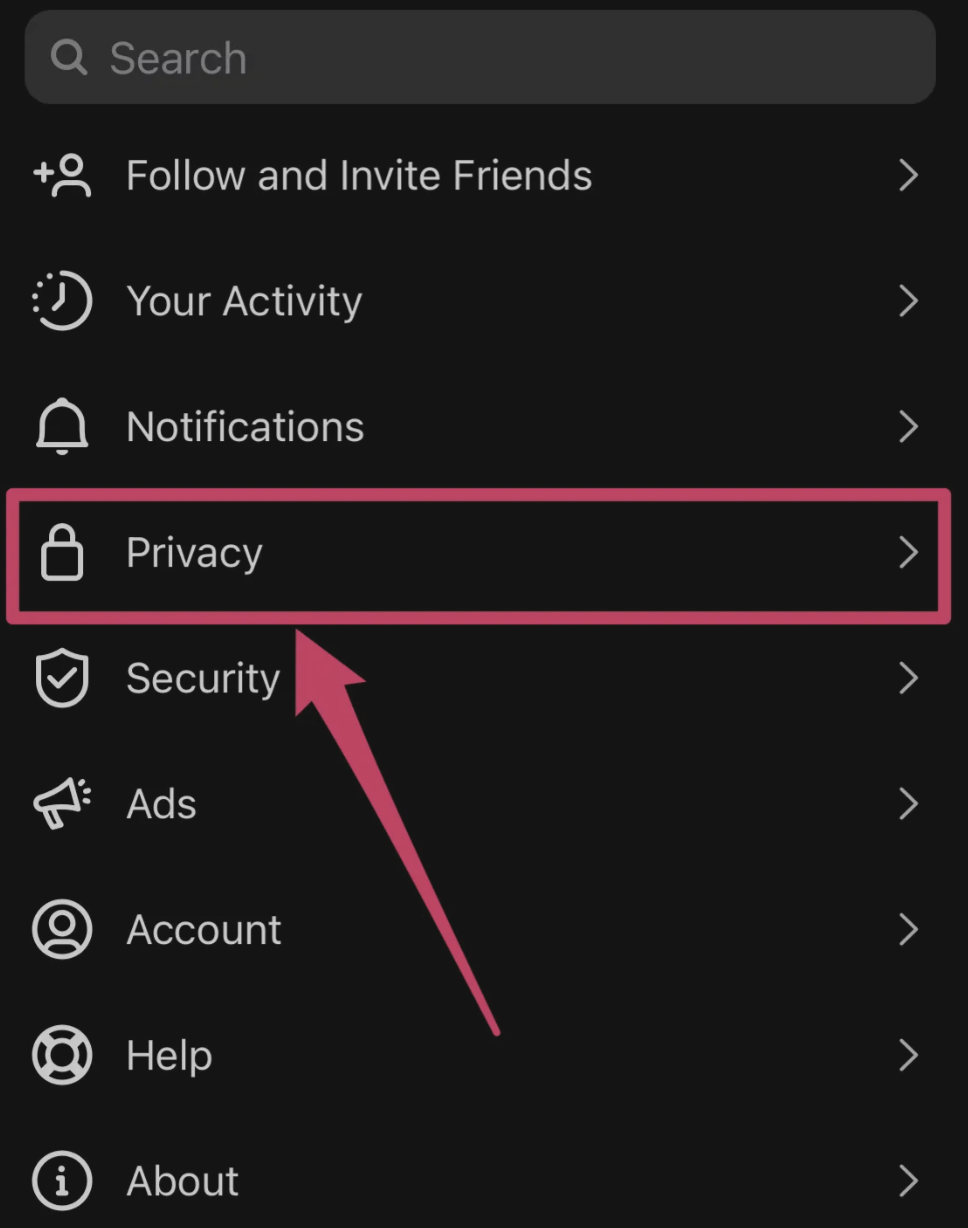
Open Settings > privacy. Instagram often changes the exact layout, but blocked accounts are usually under privacy-related settings.
Search for Blocked or Blocked accounts. If you do not see it immediately, use the search bar inside Settings and type “blocked.”
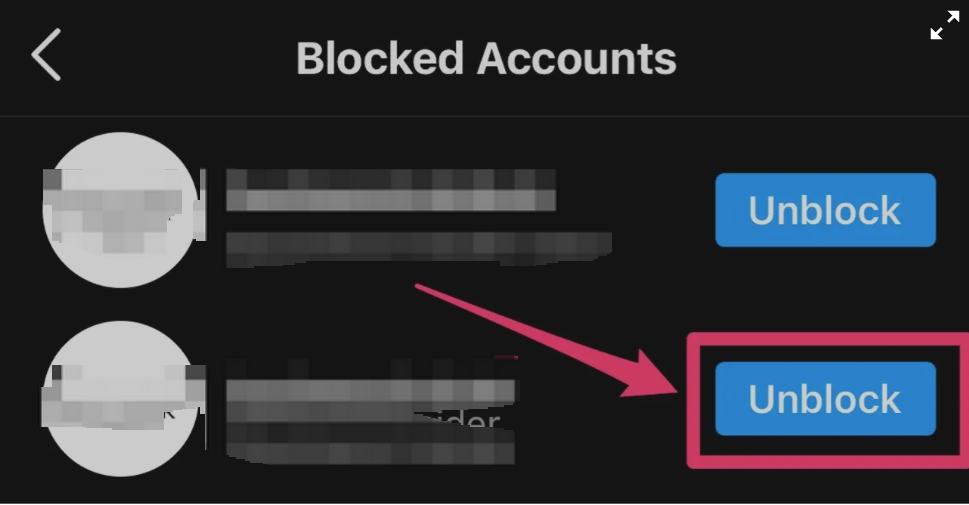
Open the blocked accounts list. You will see accounts you have blocked from this Instagram account.
Find the person you want to unblock and tap Unblock next to their name. Instagram will ask you to confirm because unblocking changes how that person can interact with your account.
Tap Unblock again to confirm. After this, the person is removed from your blocked list.
This method is best when you want to review multiple blocked accounts at once. It also helps if you forgot the exact username.
Method 2. Unblock from Their Profile
If you can still find the person’s profile, this method is faster.
Steps:
Open Instagram and tap the search icon.
Type the person’s username or display name.
Open their profile from the search results.
Tap the Unblock button on their profile.
Confirm by tapping Unblock again.
This method is simple, but it only works if Instagram still lets you find and open the profile. If the person changed their username, blocked you too, or deactivated their account, you may not see them in search. In that case, use the blocked accounts list instead.
Method 3. Unblock from Direct Messages
If you previously chatted with the person, the conversation may still be available in your inbox. This can give you another path to the profile.
Steps:
Open Instagram and go to your DMs.
Search for the old conversation.
Open the chat if it still appears.
Tap the person’s name or profile area at the top of the chat.
Look for an Unblock option.
Tap Unblock and confirm.
This method is useful when you cannot remember the username but still have the old message thread. If the conversation disappeared or the account is no longer available, go back to the blocked accounts list.
How to Unblock Someone on Instagram from Desktop
You can also unblock someone from Instagram’s website, although the desktop version may feel less complete than the mobile app.
Use the search bar to look for the blocked person’s username.
Open the profile if it appears.
Click Unblock.
Confirm the action.
If the profile does not appear on desktop, do not assume the unblock is impossible. Instagram’s desktop search can be limited. Try the mobile app and open the blocked accounts list instead.
Why Can’t I Find Someone to Unblock on Instagram?
This is one of the most common problems. You want to unblock someone, but their profile seems gone. There are several possible reasons.
They may have blocked you too. If both accounts blocked each other, finding the profile through search can become difficult. Try using the blocked accounts list instead of search.
They may have changed their username. If you are searching the old username, Instagram may not show the current account. Check old DMs, mutual tags, or the blocked accounts list.
Their account may be deleted, disabled, or temporarily deactivated. If the account no longer exists, you will not be able to open the normal profile page.
Instagram search may simply not show the account. Search results are not always complete, especially for blocked or restricted interactions. Again, the blocked list is the more reliable path.
You may also be using the wrong Instagram account. If you have multiple accounts, switch to the account where the block originally happened and check there.
How to See Your Blocked Accounts List on Instagram
If you are not sure who you blocked, use the blocked accounts list.
On iPhone or Android:
Open Instagram.
Tap your profile picture.
Tap the menu icon.
Open Settings and privacy.
Search for Blocked or scroll to the blocked accounts section.
Open the list.
Review blocked users.
Tap Unblock beside any account you want to remove from the list.
If you are on desktop and cannot find the same list, use the Instagram mobile app. The mobile app is usually better for account privacy settings.
If You Mean Instagram Is Blocked at School, Work, or on Wi-Fi
Sometimes “unblock Instagram” means Instagram itself will not open. This is common on school Wi-Fi, workplace networks, public networks, or managed devices.
In that case, the problem is not your Instagram blocked list. The network may be filtering Instagram domains, app traffic, DNS requests, or social media sites in general.
Method 1. Use Mobile Data
Mobile data is the simplest test because it bypasses the restricted Wi-Fi network.
Steps:
Turn off Wi-Fi on your phone.
Enable mobile data.
Open the Instagram app or Instagram.com.
Check whether the feed, stories, reels, and DMs load normally.
If Instagram works on mobile data but not on Wi-Fi, the Wi-Fi network is likely blocking Instagram. This does not require changing your Instagram account settings.
Method 2. Try a VPN
A VPN can route your connection through another server, which may help when Instagram is blocked by a local network.
Steps:
Choose a reputable VPN.
Install the VPN app.
Connect to a nearby server for better speed.
Open Instagram again.
If it does not work, try another server.
VPNs are easy, but they are not always stable. Some networks block VPN traffic, and shared VPN IPs may be slow or crowded.
Method 3. Use a Proxy
A proxy can route browser traffic through another IP address. This can be useful if you mainly use Instagram Web in Chrome, Firefox, or another browser.
A proxy is more configurable than a basic VPN. You can choose the proxy type, location, and session style. This is helpful for users who need stable Instagram web access rather than casual one-click browsing.
Nstproxy is a good option when Instagram is blocked at the network level or when you need a more stable proxy setup than free proxy sites can provide.
For Instagram access, the best Nstproxy product depends on the use case:
Use Case
Recommended Nstproxy Product
Stable Instagram web access
Static ISP Proxy
Real-user IP quality
Residential Proxy
Mobile-style Instagram workflows
Mobile Proxy
Browser testing or research
Residential Proxy
Fast low-risk testing
Datacenter Proxy
For most users who want stable access to Instagram Web, Nstproxy Static ISP Proxy is the best starting point because it keeps a consistent IP for longer sessions. If you need real-user IP quality or regional browsing, Nstproxy Residential Proxy is a better fit.
How to use Nstproxy for Instagram Web:
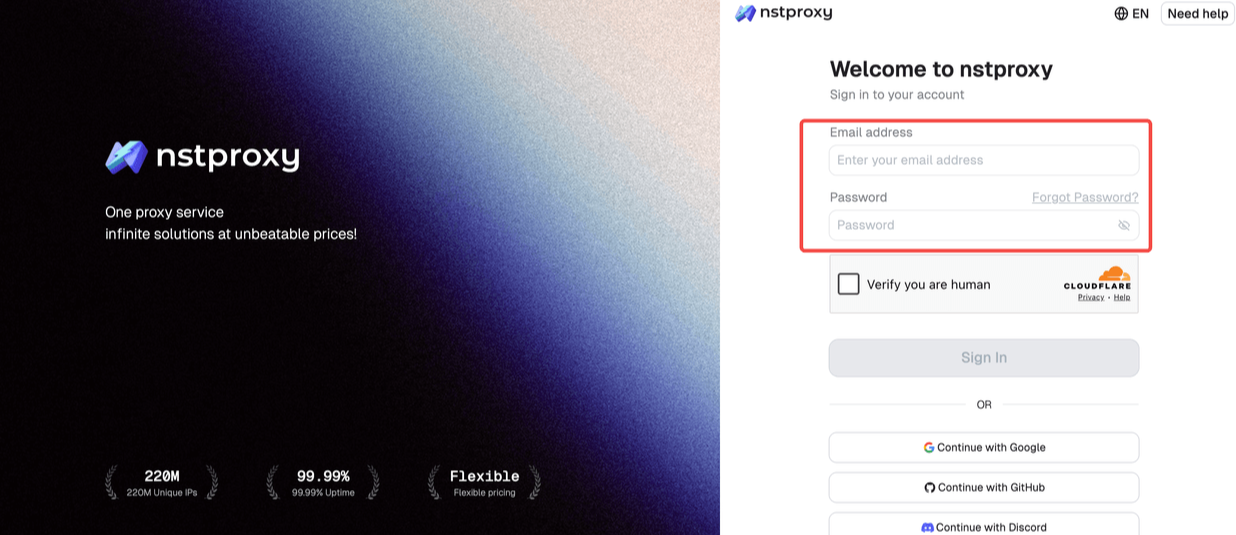
Sign up for Nstproxy.
Create an account and choose the proxy product that matches your workflow. For stable browsing, start with Static ISP. For flexible regional access, choose Residential.
Copy your proxy details.
You will need the proxy host, port, username, password, and protocol. Nstproxy supports common proxy formats such as HTTP and SOCKS5, depending on the product.
Configure the proxy in your browser or proxy manager.
If you use Chrome, you can configure the proxy through a proxy extension like ZeroOmega or through system proxy settings. Enter the Nstproxy host, port, username, and password exactly as shown.
Test the IP before opening Instagram.
Visit an IP checker in the same browser. Confirm that the browser is using the Nstproxy IP instead of your original network IP.
Open Instagram.com.
Log in normally if needed. For account stability, avoid switching proxies during the same login session.
Keep the session consistent.
If you are logged into Instagram, use the same static or sticky proxy session instead of rotating IPs frequently. Constant IP changes can trigger extra checks.
Nstproxy is not needed when you are simply unblocking a person inside Instagram. It is useful when Instagram itself is blocked by a network or when you need stable browser-level access.
Instagram Unblock vs Instagram Action Block
Unblocking someone is different from an Instagram action block.
When you unblock someone, you are changing a privacy setting between your account and another user. You control that action.
An action block is when Instagram temporarily limits what your account can do. You may be unable to like, follow, comment, message, or post normally. This can happen after repeated actions, automation-like behavior, suspicious login activity, or platform safety checks.
If you are dealing with an action block, do not keep repeating the same action. Wait, slow down activity, update the app, check account security, and avoid automation. A blocked accounts list will not fix an action block.
FAQs
Q1. How do I unblock someone on Instagram?
Open Instagram, go to your profile, open Settings and privacy, find Blocked accounts, tap Unblock beside the person’s name, and confirm.
Q2. How do I see my blocked list on Instagram?
Go to your Instagram profile, tap the menu icon, open Settings and privacy, then search for Blocked or Blocked accounts.
Q3. What happens after I unblock someone on Instagram?
They may be able to find your profile and interact with you again depending on your privacy settings. Instagram does not automatically make you follow each other again.
Q5. Will someone know if I unblock them on Instagram?
Instagram usually does not send a notification when you unblock someone. They may notice if they can search your profile or interact with your account again.
Q6. Why can’t I find someone I blocked on Instagram?
They may have changed username, blocked you back, deleted their account, deactivated their profile, or disappeared from search. Try checking your blocked accounts list.
Q7. Can I unblock someone who also blocked me?
You may still be able to remove them from your blocked accounts list, but finding their profile can be difficult if they blocked you too.
Q8. How do I unblock Instagram at school or work?
Try mobile data first. If the network is blocking Instagram, a VPN or proxy may help. For stable Instagram Web access, Nstproxy Static ISP or Residential proxies are useful options.
Q9. Is a proxy better than a VPN for Instagram?
A VPN is easier for casual use. A proxy gives more control over IP type, location, and session stability, which is useful for Instagram Web, browser testing, and stable access workflows.
Conclusion
For most users, unblock Instagram means unblocking someone from the blocked accounts list. The most reliable method is to open Instagram settings, find Blocked accounts, and confirm the unblock action from there. If you cannot find the person, check whether they changed their username, blocked you back, deleted the account, or were blocked from a different Instagram account.
If you mean Instagram itself is blocked by school, work, public Wi-Fi, or another network, that is a separate access issue. Mobile data, VPNs, and proxies can help. For stable Instagram Web access, Nstproxy is a strong option because it offers Static ISP, Residential, Mobile, and Datacenter proxies for different needs.
Ivy Lin
Aug. 6th 2026
110M+ real IPs with 99.9% access success
Blazing-fast average response ~0.5s for high-concurrency tasks
From only $0.1/GB
Get immediate access to premium residential, datacenter, IPv6 and ISP proxy pools.