A blocked site in Chrome may be caused by Chrome permissions, extensions, cache, Safe Browsing, administrator policies, DNS, firewall, or network restrictions.
If the site is blocked only in Chrome, start with Site Settings, extensions, and cache.
If the site is blocked in every browser on the same Wi-Fi, the issue is probably network-level.
If Chrome says it is managed by an organization, the block may come from school, work, or device policy.
If the site works on mobile data but not Wi-Fi, your Wi-Fi network may be filtering it.
Nstproxy with Nstbrowser can help when users need browser-level proxy access, clean browser profiles, and stable IP routing.
Do not bypass Chrome security warnings or enter passwords on unknown proxy sites.
Take a Quick Look
Looking for a more stable and secure browsing setup? Pair Nstbrowser with Nstproxy to create isolated browser profiles, maintain consistent IP identities, and reduce network-related disruptions. Start using Nstbrowser and Nstproxy today.
You open Chrome, type in a website, and nothing loads. Maybe you see “This site is blocked,” “Your administrator has blocked this page,” “Your connection is not private,” or a blank page that never finishes loading. On another device, the same website may work. On mobile data, it may open instantly. That is when the question becomes: how do you view blocked sites in Chrome, and how do you know what is actually blocking them?
The answer depends on the source of the block. Chrome itself may be blocking a permission, an extension may be stopping the page, Safe Browsing may be warning you about a dangerous site, or an administrator may have blocked the URL through school or work policies. In other cases, the problem is not Chrome at all. It may be your Wi-Fi, DNS provider, firewall, router, ISP, or regional network.
This guide walks through the process in the right order: first identify the type of block, then check Chrome settings, then move to network-level fixes if needed.
What Does “Blocked Sites in Chrome” Mean?
A blocked site in Chrome does not always mean the same thing. Sometimes Chrome is blocking a specific permission, such as pop-ups, cookies, downloads, or insecure content. Sometimes the browser is warning you that a page may be unsafe. Sometimes a school, workplace, or parent-managed account has blocked the URL.
It can also be a network problem. If the website is blocked by DNS, Wi-Fi rules, a firewall, or regional filtering, Chrome is only showing the result of that block. In that case, changing Chrome settings alone may not solve the issue.
Here are the main types of blocks:
Block Type
What It Means
Common Fix
Chrome site permission block
Chrome blocks pop-ups, cookies, location, downloads, or insecure content
Check Site Settings
Safe Browsing warning
Chrome thinks the site may be dangerous
Avoid the site unless you fully trust it
Extension block
An ad blocker, privacy tool, or blocker extension stops the page
Disable extensions and test
Administrator block
School, work, or managed Chrome policy blocks the URL
Check Chrome management settings
DNS or network block
Wi-Fi, router, ISP, or DNS provider blocks the site
Chromebook, school laptop, or parental control restricts access
Admin permission may be required
The most useful rule is simple: if only Chrome fails, check Chrome. If every browser and device fails on the same network, check the network.
How to Know What Is Blocking the Website
Before trying to unblock anything, spend one minute identifying the source of the block. This makes the rest of the fix much easier.
Symptom
Likely Cause
Best First Fix
Site blocked only in Chrome
Chrome settings, cache, extension
Check Site Settings and extensions
Site blocked in all browsers
DNS, firewall, router, network
Test another network or DNS
Chrome says “managed by your organization”
Admin policy
Check chrome://management
Site works on mobile data but not Wi-Fi
Network block
Use another network or DNS
Site shows unsafe warning
Safe Browsing/security issue
Do not bypass casually
Site blocked by region
Geo/IP restriction
Use proxy, VPN, or location-specific access
Site blocked on Chromebook
School/device policy
Check administrator restrictions
Once you know where the block comes from, choose the method that matches your situation.
How to View Blocked Sites in Chrome Settings
Start with Chrome itself. If Chrome blocked a permission for a website, you can usually view and change it in Site Settings.
1. Check Site Settings on Desktop
Chrome keeps website permissions under Site Settings. This is where you can see whether a site is blocked from using cookies, pop-ups, redirects, location, camera, microphone, notifications, downloads, or insecure content.
Steps:
Open Chrome, click the three-dot menu, and go to Settings.
Open Privacy and security, then click Site settings.
Review categories such as cookies, pop-ups, redirects, notifications, location, camera, microphone, downloads, and insecure content.
Open the blocked category, find the affected site, and remove it from the blocked list or change the permission.
Reload the website and test again.
If the site starts working after this, the issue was a Chrome permission block, not a network block.
2. Check Site Permissions From the Address Bar
If you are already on the blocked website, the address bar gives you a faster path.
Steps:
Open the affected website in Chrome.
Click the lock, tune, or site information icon near the address bar.
Open Site settings for that specific website.
Review blocked permissions and change only the permissions the site actually needs.
Refresh the page.
This is best when only one website is affected.
3. Check Chrome on Mobile
Chrome mobile also has Site Settings, though the layout is simpler than desktop.
Steps:
Open Chrome on Android or iPhone and tap the three-dot menu.
Go to Settings, then Site settings.
Check blocked permissions such as pop-ups, cookies, camera, microphone, and location.
Adjust the affected site’s permission and reopen the page.
If mobile Chrome still cannot open the site, test the same site on mobile data. That helps confirm whether Wi-Fi is the real blocker.
How to Unblock Websites in Chrome
If the site is not simply blocked in Site Settings, move through the next methods. Each method targets a different cause, so start with browser-level fixes before moving to network-level tools.
Situation
Best Fix
Chrome permission blocked
Site Settings
Site loads badly or login loops
Clear cookies/cache
Site blocked only with extensions enabled
Disable extensions
Chrome managed by school/work
Contact administrator
Site blocked on Wi-Fi only
Mobile hotspot or DNS
Site blocked by region/IP
Nstproxy Residential Proxy
Need stable browser-level access
Nstproxy Static ISP + Nstbrowser
Suspicious website warning
Avoid unless you trust the site
Chromebook blocked by policy
Admin permission required
Method 1. Clear Cookies and Cache
If the site used to work but now fails, old browser data may be causing a login loop, broken redirect, or blocked session. Clearing cookies and cache is the easiest first fix.
Steps:
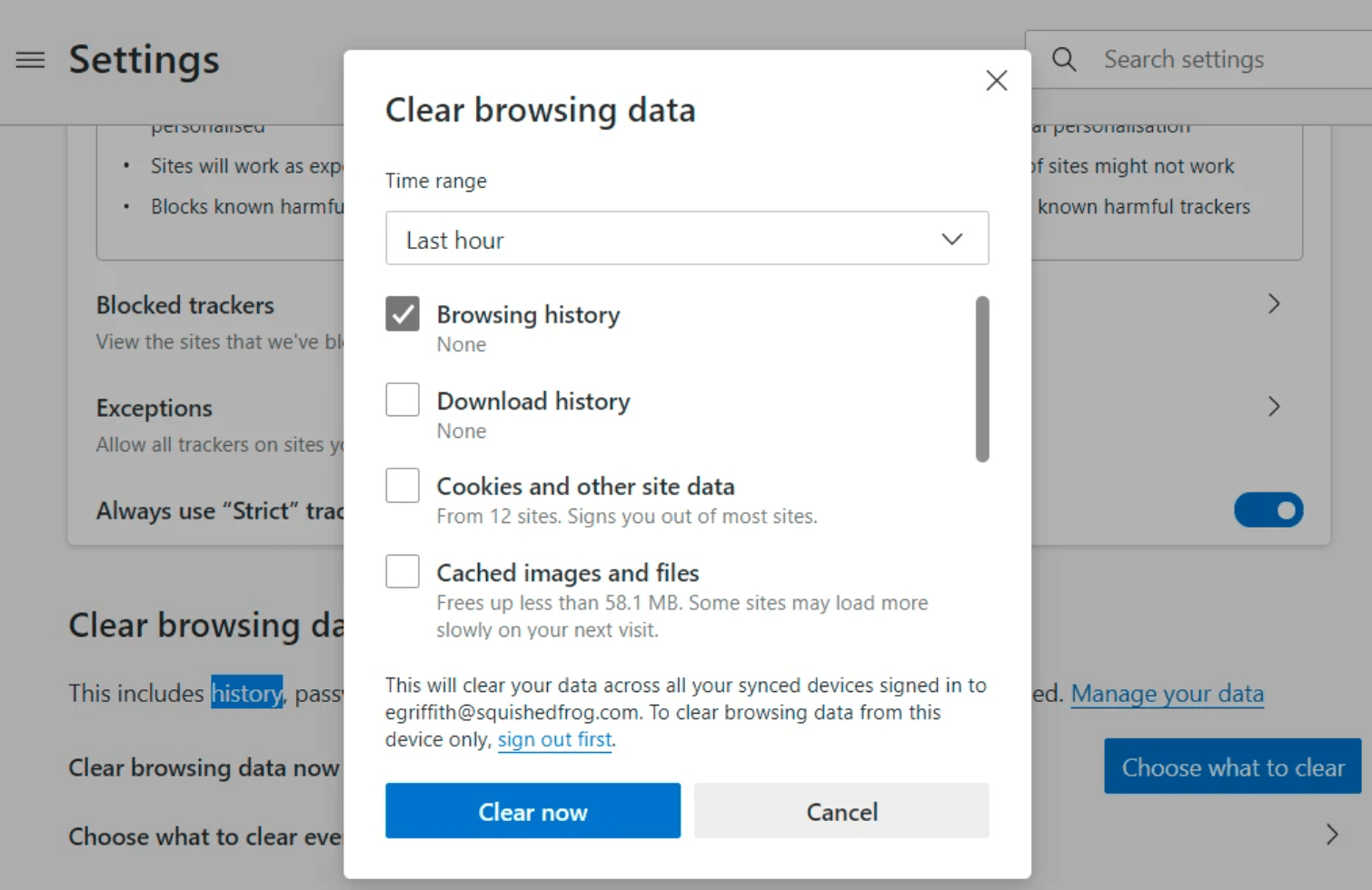
Open Chrome settings and go to Privacy and security.
Choose Clear browsing data, then clear cookies and cached files for the affected site or recent browsing period.
Restart Chrome and open the website again.
If the site works in incognito mode but not in normal Chrome, cookies or cache are likely the problem.
Method 2. Disable Chrome Extensions
If clearing data does not help, the next suspect is extensions. Ad blockers, privacy extensions, antivirus tools, script blockers, and productivity blockers can silently prevent websites from loading.
Steps:
Open chrome://extensions.
Turn off ad blockers, privacy tools, script blockers, VPN/proxy extensions, and site-blocking extensions.
Reload the blocked website.
If it works, turn extensions back on one by one until you find the one causing the block.
This method is especially useful when a website loads in another browser but not in Chrome.
Method 3. Check Whether Chrome Is Managed
If Chrome is managed by your school, workplace, or organization, local settings may not be enough. Administrators can block URLs through Chrome policies.
Steps:
Type chrome://management in the Chrome address bar.
Check whether Chrome says it is managed.
Type chrome://policy to view active policies.
Look for URL blocklist, content restriction, extension, or network policies.
If the block is managed, contact the administrator instead of trying to override it locally.
This is common on school Chromebooks, work laptops, and enterprise-managed Chrome browsers.
Method 4. Reset Site Settings
If many permissions were changed over time, resetting the affected site can clean up the problem without resetting the whole browser.
Steps:
Open Chrome settings and go to Privacy and security.
Open Site settings, then find the affected website.
Reset that site’s permissions.
Reopen the website and allow only the permissions it actually needs.
This is a good middle step before using DNS, proxy, or VPN tools.
Method 5. Change DNS Settings
If the website is blocked outside Chrome or fails on every browser, DNS may be involved. DNS changes can help when a network or DNS provider is filtering the site.
Steps:
Open your device’s network settings and find DNS settings.
Replace the current DNS with a trusted public DNS, such as Cloudflare 1.1.1.1 / 1.0.0.1 or Google DNS 8.8.8.8 / 8.8.4.4.
Save the changes, restart Chrome, and test the website again.
DNS changes are useful for DNS-level filtering, but they will not bypass administrator policies or Chrome security warnings.
Method 6. Test Another Network or Mobile Hotspot
If DNS does not solve it, test whether the Wi-Fi network is the blocker. This is one of the clearest diagnostics.
Steps:
Turn off Wi-Fi and switch to mobile data, or connect to another trusted network.
Open Chrome and visit the blocked site.
If the site works on mobile data but not Wi-Fi, the original network is likely filtering it.
Use a permitted network or contact the network owner if access should be allowed.
This method is useful because it tells you whether the issue is Chrome or the network.
Method 7. Use Nstproxy With Nstbrowser for Browser-Level Access
If the block is tied to IP location, network routing, or messy browser sessions, a browser-level proxy setup can help. This is where Nstproxy + Nstbrowser work well together.
Nstproxy provides the proxy IP. Nstbrowser provides a clean browser profile where proxy settings, cookies, cache, and session data stay separate. This is more controlled than changing your whole device network with a VPN.
This setup is useful for browser-level access, region-specific testing, clean profiles, and stable sessions.
Use Case
Recommended Setup
Stable browser sessions
Nstproxy Static ISP Proxy
Region-specific access
Nstproxy Residential Proxy
Clean browser profile
Nstbrowser
Multiple browser environments
Nstbrowser + Nstproxy
Quick location testing
Residential Proxy
Steps:
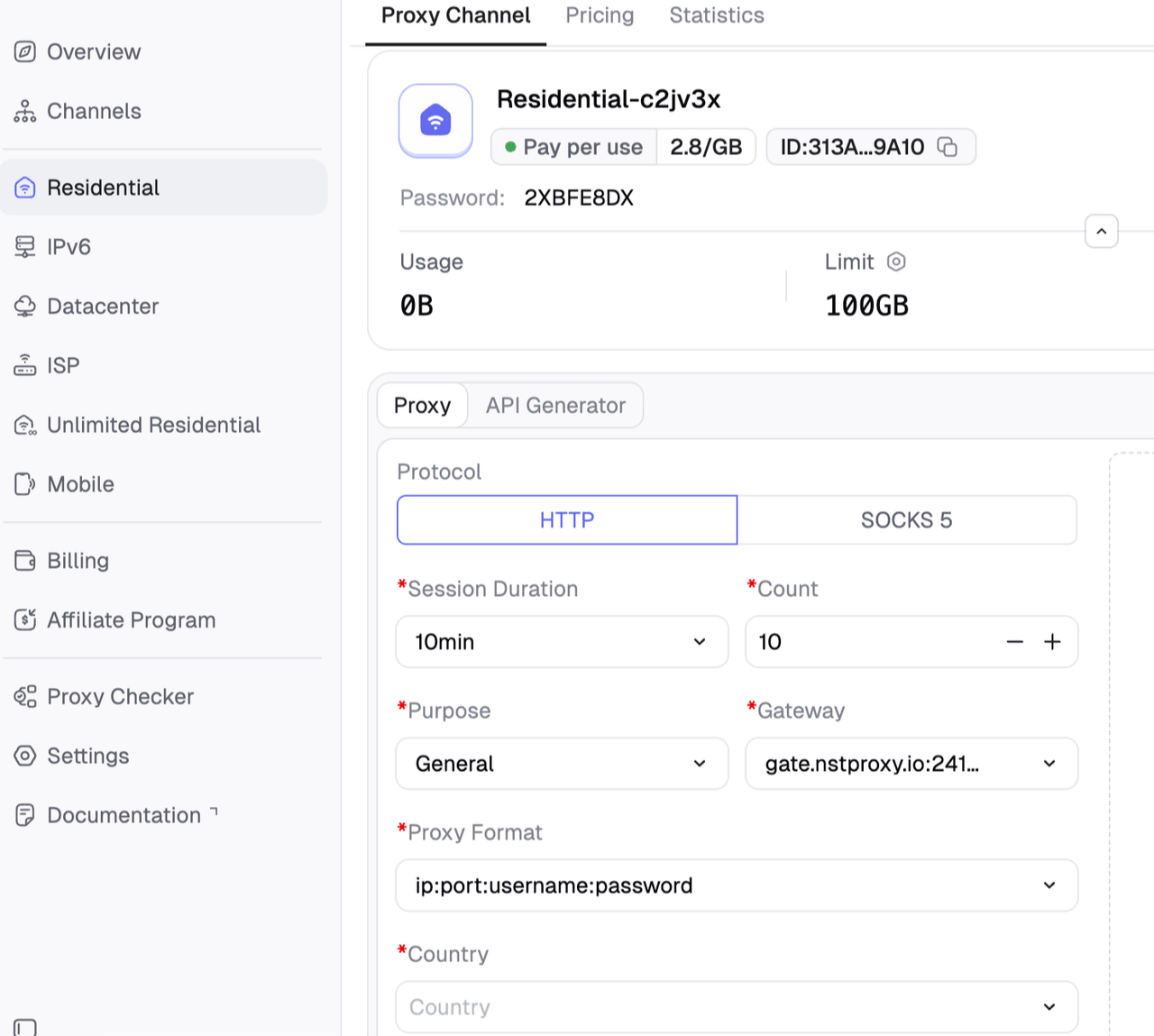
Choose Nstproxy Static ISP Proxy for stable sessions or Residential Proxy for location flexibility.
Copy the proxy host, port, username, and password.
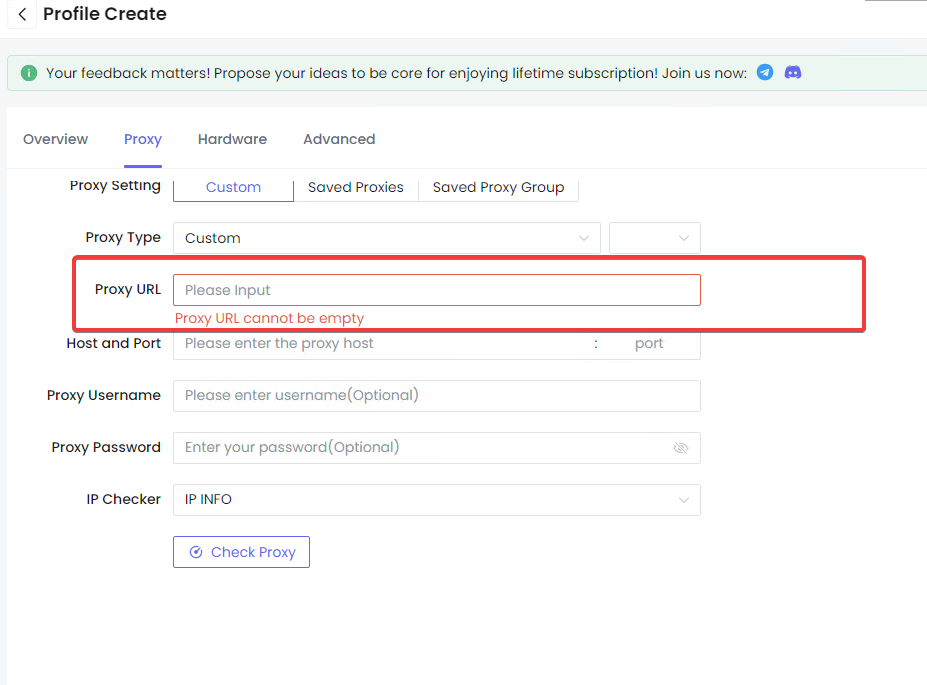
Open Nstbrowser, create a new browser profile, and add the Nstproxy details in proxy settings.
Launch the profile, check your IP location, then open the blocked site in that clean browser environment.
Keep the same profile and proxy active during the session.
This method is best for browser-level access. It should not be used to ignore school, work, legal, or account restrictions.
Method 8. Use a VPN or Proxy Extension Carefully
A VPN or proxy extension may help if the site is blocked by region or network. But low-quality extensions can be slow, unsafe, or overloaded with ads.
Steps:
Choose a trusted VPN or proxy extension with clear permissions.
Select a suitable location and connect.
Clear cookies if the website still shows old location data.
Test the website, and remove the extension if it causes redirects, pop-ups, or privacy concerns.
For stable browser-level use, Nstproxy with Nstbrowser gives more control than random unblock extensions.
How to View Blocked Sites on Chromebook
Chromebooks deserve a separate note because many are managed by schools or organizations. If the device is managed, you may not be able to unblock websites from Chrome settings.
Check If the Chromebook Is Managed
Steps:
Open Chrome and visit chrome://management.
Check whether the device is managed by a school or organization.
If managed policies are active, local Chrome changes may not remove the block.
Contact the administrator if the site should be allowed.
Check Chrome Site Settings
If the Chromebook is not managed, use the same Chrome Site Settings path:
Open Chrome settings.
Go to Privacy and security.
Open Site settings.
Review blocked permissions and adjust the affected site.
Test Another Network If Allowed
If the site is blocked only on school Wi-Fi, mobile hotspot may help diagnose the issue. But if the Chromebook policy blocks the site, changing networks may not solve it.
FAQs
Q1. How do I see blocked sites in Chrome?
Open Chrome settings, go to Privacy and security, then Site settings. Check permission categories such as pop-ups, cookies, notifications, downloads, and insecure content. Blocked websites may appear under specific permission categories.
Q2. How do I unblock blocked websites in Chrome?
Start by checking Site Settings, clearing cookies/cache, and disabling extensions. If Chrome is managed by an organization, you may need administrator permission. If the block is network-level, try DNS changes or another trusted network.
Q3. How do I view all blocked sites on Chrome?
Chrome does not always show one single list of all blocked websites for normal users. You usually need to check individual Site Settings categories. On managed Chrome, administrators can view or set URL blocklists through policy.
Q4. Why is Chrome blocking a website?
Chrome may block a website because of unsafe content, blocked permissions, extensions, cached data, administrator policies, DNS filtering, or network restrictions.
Q5. How do I unblock a website blocked by administrator?
If a site is blocked by an administrator, local Chrome settings may not override it. Check chrome://management and chrome://policy. If the block is legitimate or work/school-managed, contact the administrator.
Q6. How do I unblock websites on Chrome mobile?
Open Chrome mobile settings, go to Site settings, check blocked permissions, and adjust the affected site. If the site still fails, test mobile data to see whether Wi-Fi is blocking it.
Q7. Can I open blocked sites in Chrome without VPN?
Yes, depending on the cause. You can try Chrome Site Settings, clearing cache, disabling extensions, changing DNS, using mobile data, or using a browser-level proxy setup such as Nstproxy with Nstbrowser.
Q8. Can Nstproxy help view blocked sites in Chrome?
Yes, Nstproxy can help when the block is related to IP location, network routing, or browser-level access. Static ISP proxies are best for stable sessions, while Residential proxies are useful for location-specific access.
Conclusion
Viewing blocked sites in Chrome starts with diagnosis. If Chrome permissions are blocking the site, fix Site Settings. If extensions or cache are interfering, clean the browser. If Chrome is managed by an administrator, local settings may not override the policy. If the block comes from DNS, Wi-Fi, region, or IP restrictions, network-level methods may be needed.
For users who need stable browser-level access, Nstproxy + Nstbrowser is the strongest setup. Nstproxy provides high-quality proxy IPs, while Nstbrowser gives a clean, isolated browser profile for controlled Chrome-like access. The best fix depends on the block, but once you identify the cause, the right method becomes much easier to choose.
This guide explains how a fixed backconnect gateway selects rotating or session-pinned exit IPs. It clarifies proxy types, protocol boundaries, operational tradeoffs, and the checks buyers should run before choosing a service.
Kai Watanabe
Jul. 29th 2026
Experience Nstproxy - Start Your Free Trial Today
110M+ real IPs with 99.9% access success
Get immediate access to premium residential, datacenter, IPv6 and ISP proxy pools.
Blazing-fast average response ~0.5s for high-concurrency tasks