Full Review on Postman Proxy in 2026: Setup, and Use Guide
Quick Takeaways
Postman proxy has two meanings: sending Postman requests through a proxy server, and using Postman as a proxy to capture traffic.
Use custom proxy settings when you want Postman API requests to go through a proxy.
Use Postman built-in proxy when you want to capture requests from browsers, apps, or mobile devices.
HTTPS capture requires certificate setup.
Postman proxy settings usually apply broadly, not only to one single request.
Nstproxy can provide the external proxy IP for Postman API testing, regional testing, and stable request routing.
Take a Quick Look
Take your API testing to the next level with Nstproxy. Enjoy global IP coverage, reliable performance, and flexible proxy solutions designed to help developers test smarter, debug faster, and build with confidence.
A Postman proxy is useful when normal API requests are not enough. Maybe your company network requires all outbound traffic to pass through an authenticated proxy. Maybe you want to test how an API responds from another region. Or maybe you are debugging a mobile app and need to capture the requests it sends in the background.
The confusing part is that “Postman proxy” can mean two different things.
The first meaning is proxy settings for sending requests. In this case, Postman sends your API requests through a proxy server before they reach the target API.
The second meaning is Postman’s built-in proxy for capturing traffic. In this case, Postman acts as a local proxy and captures HTTP or HTTPS requests from another client, such as a browser, mobile app, or device.
Both are useful, but they solve different problems. This guide explains the difference, shows how to configure a Postman proxy, and helps you fix the most common proxy errors.
A Postman proxy is an intermediary layer between Postman and the target API, or between another client and Postman.
When Postman sends requests through a proxy, the request first goes to the proxy server. The proxy then forwards it to the API. This is useful for corporate networks, API geo-testing, debugging, and testing different IP routes.
When Postman acts as a built-in proxy, it captures traffic from another client. For example, you can configure your phone or browser to send traffic through Postman, then inspect those requests inside Postman.
Proxy Type
What It Does
Best For
Proxy for sending requests
Routes Postman API requests through a proxy server
API testing, corporate proxy, geo-testing
Built-in proxy for capturing traffic
Captures requests from browsers, apps, or devices
Debugging, traffic capture, collection generation
The key difference is simple: one sends Postman traffic outward through a proxy, while the other uses Postman to capture traffic from elsewhere.
Postman Proxy Settings Explained
Before configuring anything, it helps to understand the main settings.
1. System Proxy
System proxy means Postman follows your operating system’s proxy settings. If your Windows, macOS, or Linux system is already configured to use a proxy, Postman can use that same route.
This is common in corporate networks where IT manages proxy settings at the OS level.
2. Custom Proxy
Custom proxy means you configure the proxy directly inside Postman. This is useful when you want Postman to use a specific proxy without changing your whole device network.
For example, you might use a custom proxy to test an API from a different IP location or route Postman requests through a specific provider such as Nstproxy.
3. Authenticated Proxy
Some proxies require a username and password. This is common with enterprise proxies and commercial proxy providers.
If authentication is wrong, Postman may show connection failures, proxy authentication errors, or timeouts.
4. HTTP, HTTPS, and SOCKS Proxy
Postman proxy settings can involve HTTP or HTTPS traffic. Some users also search for SOCKS proxy support because SOCKS proxies are common in advanced network testing.
The exact setup depends on the proxy type, provider, and Postman version. Always match the protocol, host, port, and credentials provided by your proxy service.
Why Is Nstproxy a Good Choice for Postman
When working with APIs in Postman, a reliable proxy can improve testing flexibility, support geo-specific requests, and help simulate real-world network conditions. Nstproxy provides high-quality proxy solutions that make API development, testing, and monitoring more efficient.
Key Benefits of Using Nstproxy with Postman
✅ Test APIs from Different Locations
Route requests through IPs in different countries and regions to verify location-based content, services, and API responses.
✅ Improve Testing Flexibility
Simulate requests from various network environments to better understand how your APIs perform across different user locations.
✅ Global IP Coverage
Access a wide range of IP locations worldwide, making it easier to conduct international testing and market-specific validation.
✅ Stable & Reliable Connections
Ensure consistent API requests with high-performance proxy infrastructure designed for reliability and uptime.
✅ Support Development & QA Workflows
Perfect for developers, QA engineers, and DevOps teams performing API debugging, performance testing, and service validation.
✅ Multiple Proxy Options Available
Choose the proxy solution that best fits your testing requirements, whether for short-term testing or long-term development projects.
Why Developers Choose Nstproxy
Whether you're validating APIs, monitoring service availability, or testing location-based functionality, Nstproxy provides the flexibility, stability, and global reach needed to streamline your Postman workflows and improve testing accuracy.
This is the core setup section. Use this when you want Postman’s own API requests to go through a proxy server.
A good Postman proxy setup has three parts: choose the proxy, enter the settings correctly, and verify that requests are actually using it.
Step 1. Choose the Right Proxy Type
First, decide what you need the proxy for. If you are testing API behavior from a stable IP, use a static proxy. If you need regional testing, use a residential proxy. If you only need fast basic request checks, a datacenter proxy may be enough.
This is where Nstproxy fits naturally. Nstproxy can provide external proxy IPs that you configure inside Postman.
After choosing a proxy, copy the required connection details from your provider.
You usually need:
Proxy host
Proxy port
Username
Password
Protocol, such as HTTP, HTTPS, or SOCKS
Make sure you copy the values exactly. A wrong port or protocol is one of the most common reasons Postman proxy fails.
Step 3. Add the Proxy in Postman
Open Postman and go to the proxy settings area.
The general flow is:
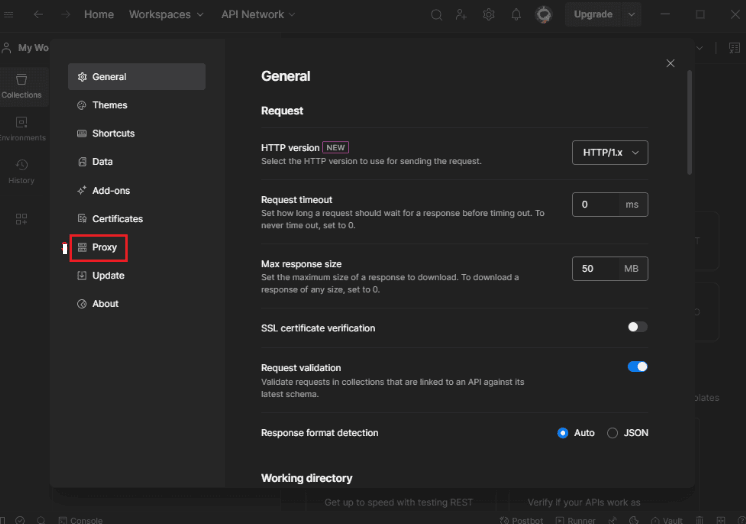
Open Postman > Click the gear icon go to Settings.
Open the Proxy tab.
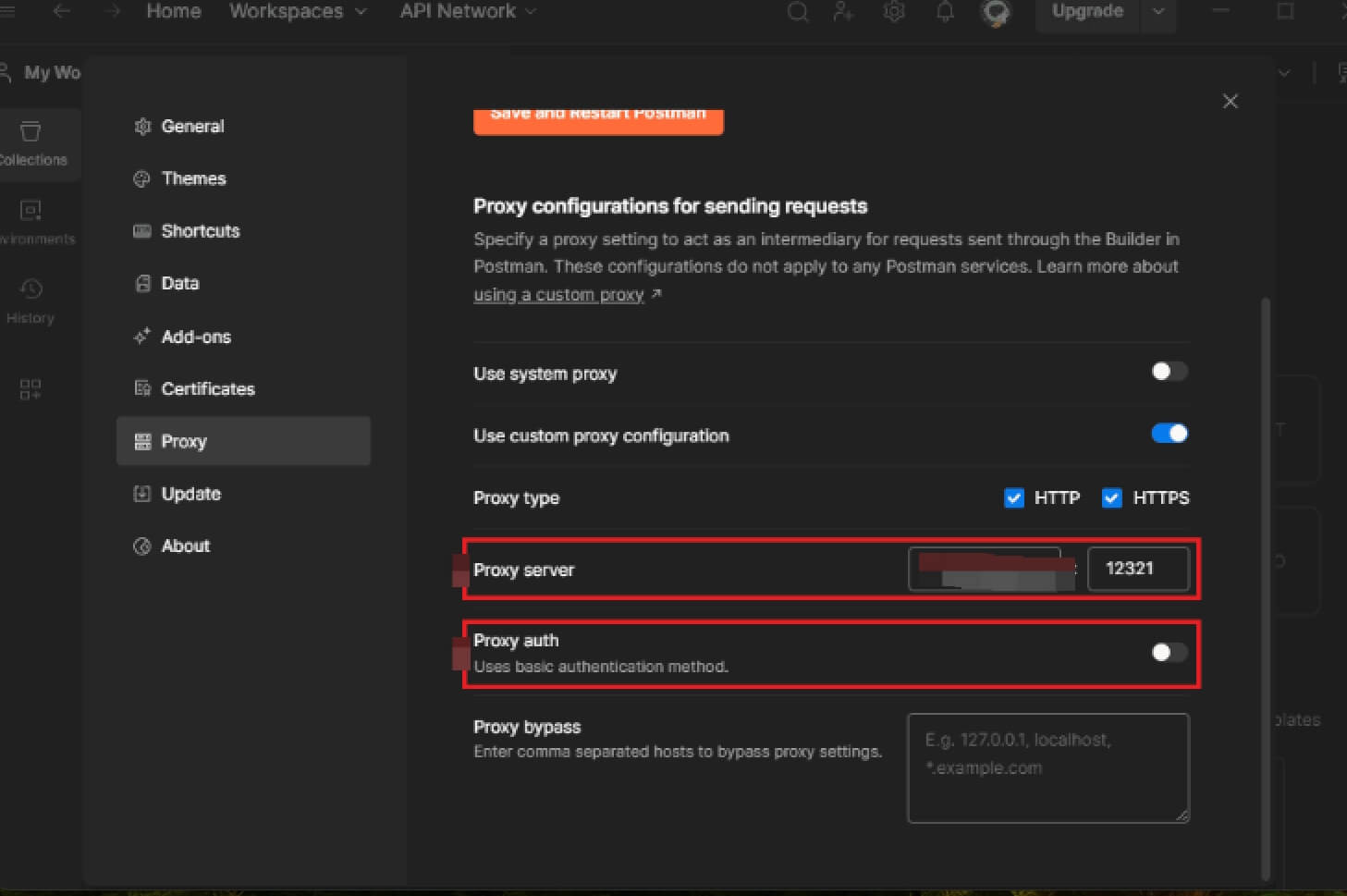
Turn on custom proxy configuration.
Enter the proxy host and port.
Add username and password if the proxy requires authentication.
Save the settings and restart Postman if needed.
If you want Postman to follow your OS proxy instead, enable Use system proxy rather than custom proxy.
Do not enable conflicting proxy settings unless you know why. If both system and custom proxy settings are active in unexpected ways, troubleshooting becomes harder.
Step 4. Test the Proxy With an IP Check Endpoint
Before testing your real API, verify that Postman traffic is going through the proxy.
Send a request to an IP-check endpoint such as:
https://api.ipify.org?format=json
If the returned IP matches your proxy IP, the setup is working. If it still shows your original IP, Postman is not using the proxy correctly.
Step 5. Test Your Target API
Once the IP check works, send your normal API request. If it fails, the problem may not be the proxy setup itself. It could be API authentication, TLS, firewall rules, target server restrictions, or request headers.
A clean testing flow is:
Test proxy with an IP endpoint.
Test a simple public API.
Test your target API.
Compare errors at each stage.
This makes it easier to see whether the proxy, Postman, or the API is causing the problem.
How to Use Postman Built-In Proxy to Capture Traffic
Postman built-in proxy is a different workflow. Here, Postman captures traffic from another client instead of sending Postman’s own requests through a proxy.
This is useful when you want to inspect real requests made by a browser, mobile app, desktop app, or device.
When to Use Built-In Proxy Capture
Use built-in proxy capture when you want to:
Capture browser requests.
Inspect mobile app API calls.
Generate Postman collections from real traffic.
Debug hidden API requests.
Compare frontend behavior with backend API responses.
This is especially useful for QA engineers and developers who need to understand what an app is actually sending.
How to Start a Proxy Capture Session
The basic setup is:
Open Postman and start a proxy capture session.
Choose a local proxy port.
Configure your browser, app, or device to use your computer’s IP address and that proxy port.
Perform the action you want to inspect.
Return to Postman and review the captured requests.
The most common mistake is configuring the client incorrectly. If the client is not pointing to Postman’s proxy host and port, Postman will capture nothing.
How to Capture HTTPS Traffic in Postman
HTTP traffic is easier to capture because it is not encrypted. HTTPS traffic requires extra setup because the traffic is encrypted between the client and server.
To inspect HTTPS traffic, the client must trust Postman’s proxy certificate.
Why HTTPS Capture Needs a Certificate
HTTPS protects traffic from being read by third parties. When Postman captures HTTPS traffic, it needs a trusted certificate so the client allows Postman to inspect the encrypted connection.
Without the certificate, HTTPS requests may fail, show certificate errors, or never appear correctly in Postman.
1. Desktop HTTPS Capture Steps
A typical desktop HTTPS capture setup looks like this:
Start the Postman proxy capture session.
Install or download the Postman proxy certificate.
Trust the certificate on the device or browser you are capturing from.
Configure that client to use Postman’s proxy host and port.
Open the target app or website.
Perform the action you want to capture.
Review the HTTPS requests in Postman.
When testing is done, remove the certificate if you no longer need it. Keeping test certificates installed longer than necessary is not a good security habit.
2. Mobile HTTPS Capture Steps
For Android or iOS capture, your phone and computer usually need to be on the same Wi-Fi network.
The flow is:
Start the Postman proxy session on your computer.
Find your computer’s local IP address.
Set your phone’s Wi-Fi proxy to that IP and Postman’s proxy port.
Install and trust the Postman certificate on the phone.
Open the mobile app or browser.
Perform the actions you want to inspect.
Check captured requests in Postman.
If nothing appears, check the phone’s Wi-Fi proxy settings, certificate trust, and whether both devices are on the same network.
Postman Proxy for Corporate Networks
Many developers need Postman proxy settings because they work behind company firewalls. In these environments, direct outbound API requests may be blocked. The company may require all traffic to pass through an authenticated corporate proxy.
Common enterprise proxy issues include:
Proxy authentication errors.
TLS inspection conflicts.
Missing corporate certificates.
Timeouts from blocked outbound traffic.
Postman not using system proxy settings.
Different behavior between Postman app, browser, and command-line tools.
If you are in a corporate environment, ask your IT team for the correct proxy host, port, authentication method, and certificate instructions. Guessing proxy settings usually wastes time.
Can You Set Proxy for a Single Request in Postman?
Many users want to set a proxy for only one request. In practice, Postman proxy settings are generally app-level or system-level rather than per single request.
That means if you enable a proxy in Postman settings, it may apply broadly to requests sent from the app.
Possible workarounds include:
Switching proxy settings before running a specific test.
Using separate Postman environments for proxy and non-proxy workflows.
Running tests through system-level proxy settings.
Using command-line tools or custom scripts if per-request proxy control is required.
If your workflow needs different proxies for different requests, Postman may not be the best place to manage that logic directly.
Common Postman Proxy Errors and Fixes
Proxy problems are easier to fix when you match the error to the likely cause.
1. Proxy Authentication Failed
This usually means the username, password, host, port, or protocol is wrong. Recopy the credentials from your proxy provider and check whether the proxy requires HTTP, HTTPS, or SOCKS.
2. Requests Still Do Not Use Proxy
If an IP-check endpoint still shows your real IP, Postman is not routing through the proxy. Check whether custom proxy is enabled, whether system proxy is overriding it, and whether the target URL is excluded by a bypass rule.
3. HTTPS Requests Fail
HTTPS failures often come from certificate problems. If a corporate proxy or capture proxy is inspecting traffic, the correct certificate must be installed and trusted.
4. Timeout or ECONNRESET
Timeouts can happen when the proxy server is unavailable, the port is wrong, the firewall blocks the connection, or the proxy is too slow.
5. Proxy Works in Browser but Not Postman
Your browser may be using system proxy settings while Postman is not. Compare Chrome, OS-level proxy, and Postman proxy settings.
6. Captured Traffic Is Empty
If the built-in proxy captures nothing, the client is probably not pointing to Postman’s proxy host and port. Also check whether both devices are on the same network.
Postman is excellent for API testing and basic capture workflows. For deep network debugging, tools like Proxyman, Charles, or Fiddler may offer more inspection features. For external proxy IPs, use a provider like Nstproxy.
Best Practices for Using Postman Proxy
Use a separate environment for proxy testing. This keeps normal API testing clean and avoids confusion.
Verify the proxy before testing your API. An IP-check endpoint quickly tells you whether Postman is using the proxy.
Avoid hardcoding proxy credentials in shared collections. Keep credentials in local settings or secure environment variables.
Clean up certificates after HTTPS testing. Do not leave test certificates trusted forever unless you truly need them.
Choose the right proxy type. Static ISP proxies are better for stable API testing. Residential proxies are better for geo-based API behavior testing. Datacenter proxies are good for fast basic checks.
FAQs
Q1. What is a Postman proxy?
A Postman proxy can mean routing Postman requests through a proxy server, or using Postman’s built-in proxy to capture requests from another client.
Q2. How do I set proxy settings in Postman?
Open Postman settings, go to the Proxy tab, and enable system proxy or custom proxy. For custom proxy, enter the host, port, username, password, and protocol.
Q3. What is the difference between system proxy and custom proxy in Postman?
System proxy uses your operating system’s proxy settings. Custom proxy uses the proxy details configured directly inside Postman.
Q4. Can Postman capture HTTPS traffic?
Yes, but HTTPS capture requires installing and trusting the Postman proxy certificate on the device or browser being captured.
Q5. Does Postman support SOCKS proxy?
Postman-related proxy support depends on the app settings and network configuration. If using a SOCKS proxy, check whether your Postman version and proxy setup support it correctly.
Q6. Can I use Nstproxy with Postman?
Yes. Nstproxy can provide the external proxy IP for Postman requests. Static ISP Proxy is best for stable API testing, while Residential Proxy is better for region-based API testing.
Conclusion
Postman proxy can mean two different workflows. If you want Postman requests to go through a proxy server, configure system proxy or custom proxy settings. If you want to capture traffic from a browser, app, or mobile device, use Postman’s built-in proxy.
The key is choosing the right setup. For corporate networks, follow IT proxy requirements. For API region testing or stable proxy routing, use a provider such as Nstproxy. Nstproxy Static ISP Proxy is best for consistent API testing, while Nstproxy Residential Proxy is better for region-based behavior testing.
Once you understand the difference between proxy configuration and proxy capture, Postman proxy becomes much easier to use and troubleshoot.
Ivy Lin
Jul. 8th 2026
Experience Nstproxy - Start Your Free Trial Today
110M+ real IPs with 99.9% access success
Get immediate access to premium residential, datacenter, IPv6 and ISP proxy pools.
Blazing-fast average response ~0.5s for high-concurrency tasks