If DuckDuckGo works on mobile data but not Wi-Fi, your network, DNS, ISP, or firewall is likely blocking it.
If DuckDuckGo opens but one website does not work, the issue may be DuckDuckGo’s privacy protection, not a DuckDuckGo access block.
Nstproxy is useful when DuckDuckGo is blocked by a network, public Wi-Fi, school/work firewall, ISP filter, or unstable VPN/proxy IP.
Clearing cache, changing DNS, disabling extensions, and switching networks can also fix common DuckDuckGo access problems.
Free proxies are usually slow, unstable, and more likely to fail.
Take a Quick Look
DuckDuckGo blocked on your current network? Use Nstproxy to route your browser through stable Residential or Static ISP proxies and restore reliable search access.
You open DuckDuckGo because you want a private search experience, but the page does not load. Maybe it works on mobile data but not on school Wi-Fi. Maybe your office network blocks it. Maybe the DuckDuckGo site opens, but a specific page, pop-up, or embedded content does not work inside the DuckDuckGo browser.
That is why “unblock DuckDuckGo” can mean more than one thing.
Sometimes DuckDuckGo itself is blocked by your network. Sometimes your DNS cannot resolve it properly. Sometimes a browser extension is breaking the page. And sometimes DuckDuckGo’s own privacy protections are blocking trackers, pop-ups, or embedded content on another website.
The fastest way to fix the problem is to identify where the block is happening. If the issue is network-based, a stable proxy like Nstproxy can help you restore access and test whether your original network is the problem.
DuckDuckGo can be blocked for several reasons. In schools and workplaces, network administrators may block privacy tools, search engines, or unknown domains through a firewall or DNS filter. On some public Wi-Fi networks, DuckDuckGo may fail because the network filters search traffic or blocks privacy-related services.
In other cases, the problem comes from the browser. Old cookies, cached files, ad blockers, script blockers, or privacy extensions can interfere with DuckDuckGo. If the issue only happens in one browser, the block is probably local.
There is also a second type of “blocked” problem. DuckDuckGo’s apps and extensions include privacy protections that may block trackers, embedded social media content, pop-ups, or other third-party elements. If DuckDuckGo itself works but a specific website behaves strangely, the problem may be the privacy protection settings for that site.
How to Unblock DuckDuckGo?
Method 1. Use Nstproxy to Access DuckDuckGo with a Stable Proxy
If DuckDuckGo is blocked by your Wi-Fi network, ISP, school firewall, workplace filter, or public hotspot, using a proxy is one of the most direct ways to test and restore access. A proxy routes your browser traffic through another IP path, so DuckDuckGo does not depend on the blocked network route.
This is where Nstproxy fits naturally. Instead of relying on free proxies that may be slow, unsafe, or already blocked, Nstproxy gives you stable duckduckgo proxy options such as Static ISP Proxies and Residential Proxies.
For regular DuckDuckGo access, Nstproxy Static ISP Proxy is usually the best choice because it gives you a consistent IP session. If you need real-user IP quality for research or location-based browsing, Nstproxy Residential Proxy is a better fit.
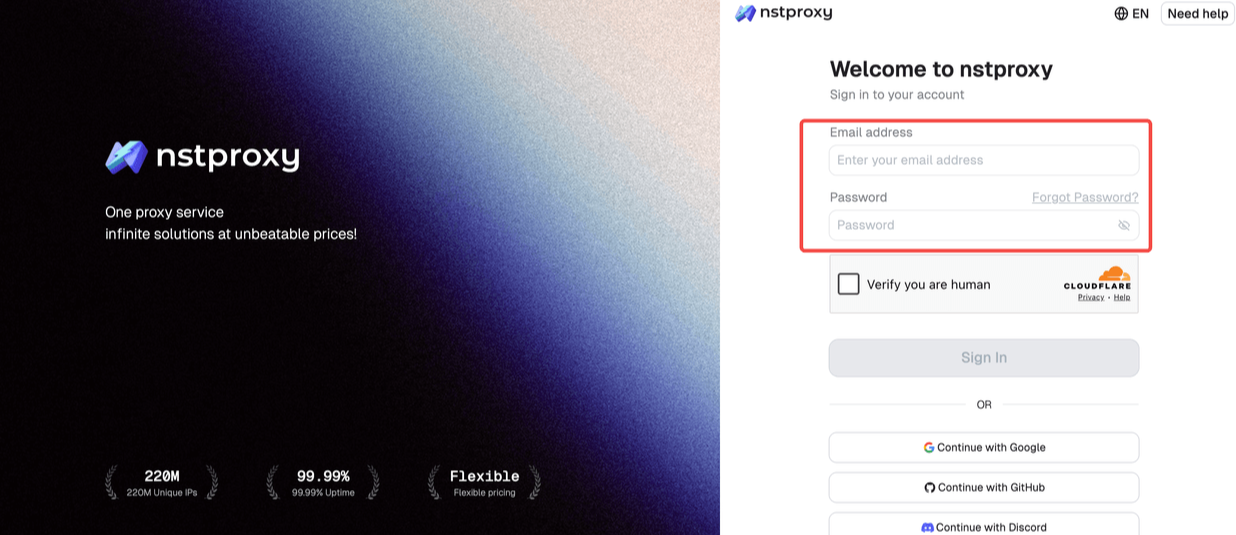
Go to Nstproxy and sign up with your email address.
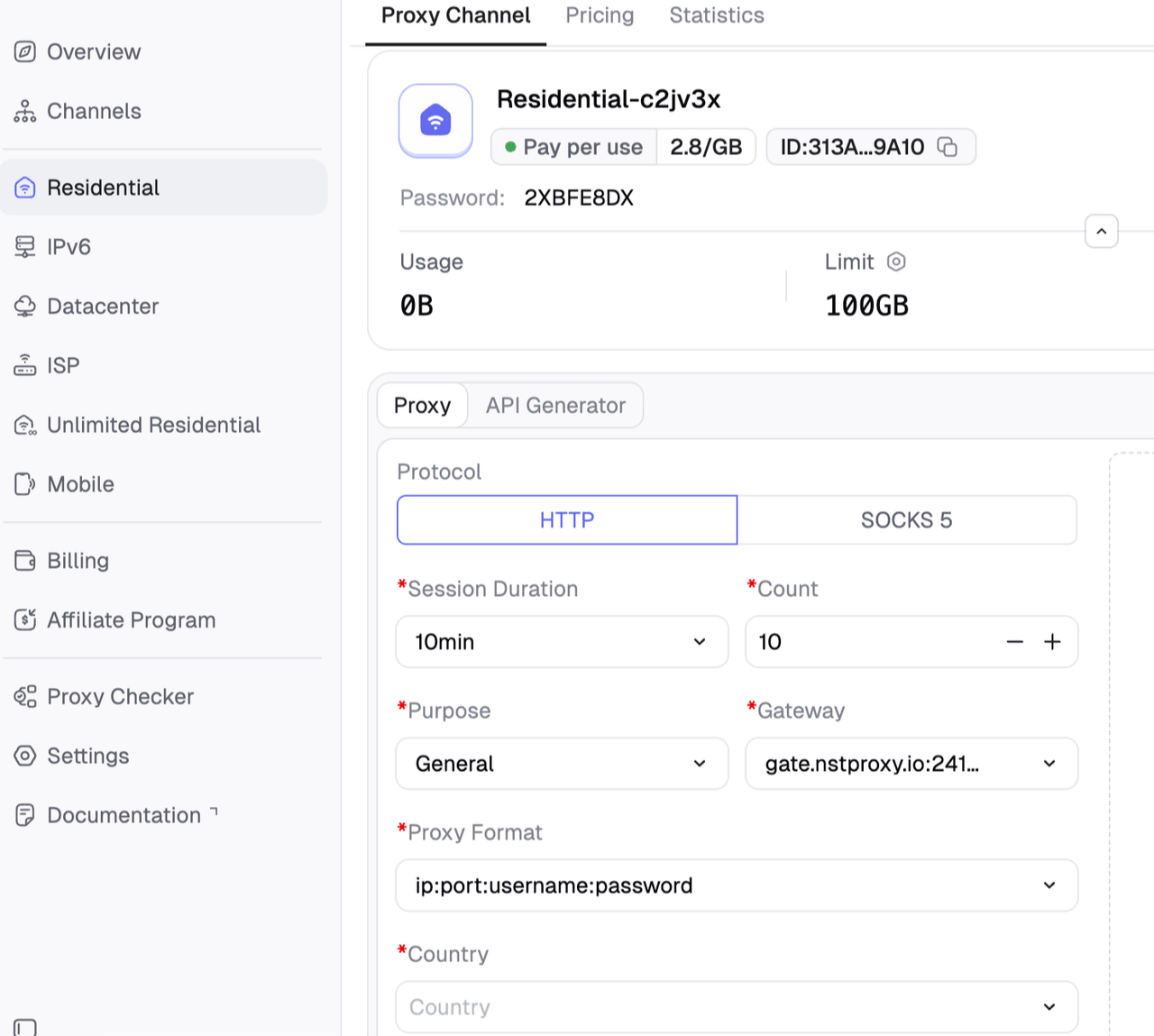
Choose a proxy plan.
Select Static ISP Proxy if you want stable browsing, or -
Residential Proxy if you need real-user IP quality.
You should configure the proxy settings like location, session duration an so on if necessary.
Then generate the proxy on the Nstproxy dashboard.
Configure the proxy in your browser, system proxy settings, or proxy manager.
Clear DuckDuckGo cookies and cached data before testing. Open duckduckgo.com and check whether the page loads normally.
Nstproxy is especially useful when DuckDuckGo works on mobile data but not on your current Wi-Fi. That usually means the issue is not DuckDuckGo itself, but the network path you are using.
Method 2. Change Your DNS Settings
If DuckDuckGo will not open, DNS may be the reason. DNS is what turns duckduckgo.com into an IP address your device can reach. If your DNS provider blocks or misroutes DuckDuckGo, the site may appear unavailable even when it is working normally.
To fix this, open your device’s network settings and switch to a trusted DNS resolver. After changing DNS, restart your browser and try DuckDuckGo again. If possible, flush your DNS cache before testing.
This method works best when the block is caused by DNS filtering. If the entire network blocks DuckDuckGo through a firewall, changing DNS alone may not be enough.
Method 3. Clear Browser Cache and Cookies
Browser data can create strange access problems. If DuckDuckGo worked before but suddenly stopped loading, old cookies or cached files may be part of the issue.
Open your browser settings, clear cookies and cached data for DuckDuckGo, then restart the browser. After that, open DuckDuckGo in a private or incognito window. If it works there, your normal browser session was likely the problem.
This is a simple fix, but it is worth trying before changing network settings.
Method 4. Disable Conflicting Browser Extensions
Some extensions can interfere with DuckDuckGo. Ad blockers, script blockers, VPN extensions, privacy tools, and DNS-related add-ons may block scripts or connections that DuckDuckGo needs to load properly.
Disable your extensions temporarily, restart the browser, and open DuckDuckGo again. If the site works, turn extensions back on one by one until the issue returns. That will show you which extension is causing the problem.
This method is most useful when DuckDuckGo fails in one browser but works in another.
Method 5. Switch Networks to Confirm the Problem
Before spending time on advanced fixes, test another network. Turn off Wi-Fi and open DuckDuckGo using mobile data. If it loads immediately, your original Wi-Fi network is probably blocking or filtering it.
You can also test from another trusted network, such as home Wi-Fi instead of school or office Wi-Fi. If DuckDuckGo only fails on one network, the issue is not your device. It is likely DNS, firewall, ISP routing, or network policy.
Once you know the issue is network-based, using Nstproxy becomes a more logical solution because it gives you a cleaner route for browser traffic.
What If DuckDuckGo Is Blocking a Website or Pop-Up?
Sometimes users say “DuckDuckGo is blocking something,” but they do not mean DuckDuckGo itself is blocked. They mean the DuckDuckGo browser or extension is blocking a feature on another website.
DuckDuckGo includes tracking protection, embedded content protection, and other privacy features. These protections are useful, but they can occasionally break login buttons, pop-ups, charts, embedded social posts, or tracking-based site features.
If this happens, open the affected website in DuckDuckGo, click the privacy shield or site protection icon, and disable protection for that specific site if you trust it. Reload the page and test again. If the site works after that, DuckDuckGo’s privacy protection was the cause.
Proxy vs VPN vs DNS Change for DuckDuckGo
Method
Best For
Pros
Cons
Nstproxy Proxy
Network/IP blocks, stable access
More control, stable sessions, location choice
Needs setup
VPN
Simple full-device access
Easy to use
Shared VPN IPs may be blocked
DNS Change
DNS filtering
Fast and free
Does not fix all network blocks
Mobile Data
Quick testing
Confirms network issue
Not ideal long term
Browser Fix
Cache or extension problems
Simple and free
Only works for local issues
For casual users, a VPN may be easier. For controlled browser access, location testing, and stable search sessions, a proxy like Nstproxy gives more flexibility.
FAQs
Q1. How do I unblock DuckDuckGo?
Start by testing another network. If DuckDuckGo works on mobile data but not Wi-Fi, use a proxy like Nstproxy, change DNS, or troubleshoot the network. If it fails only in one browser, clear cache and disable extensions.
Q2. Why can’t I open DuckDuckGo?
Common causes include school or work restrictions, ISP filtering, DNS problems, browser cache, extensions, VPN issues, or local firewall rules.
Q3. Can I use a proxy to unblock DuckDuckGo?
Yes. A proxy can route your browser traffic through another IP path. Nstproxy is a strong option because it offers stable Static ISP and Residential Proxies.
Q4. Is Nstproxy good for DuckDuckGo access?
Yes. Nstproxy is useful when DuckDuckGo is blocked by a network, public Wi-Fi, ISP, or unstable proxy/VPN route. Static ISP proxies are best for stable sessions.
Q5. Why does DuckDuckGo block pop-ups or embedded content?
DuckDuckGo’s privacy protections may block trackers, embedded social media content, pop-ups, and third-party scripts. You can disable protection for a trusted site if needed.
Q6. Is DuckDuckGo blocked by my ISP?
It may be. Test DuckDuckGo on mobile data or another network. If it works elsewhere, your ISP, DNS, or local network may be blocking it.
Conclusion
If DuckDuckGo is blocked, do not assume there is only one cause. First check whether the problem is network-based, browser-based, DNS-related, or caused by DuckDuckGo’s privacy settings.
For network-level blocks, Nstproxy is the strongest first method because it gives you a stable proxy route instead of relying on your blocked Wi-Fi, ISP, or public network. For local browser issues, clearing cache, disabling extensions, and adjusting DuckDuckGo site protections may be enough.